Keyboard shortcuts
The full keyboard reference, grouped by what you are doing. Press Shift+? any time to open the same shortcuts inside the app, where every command is searchable and remappable. This page is long on purpose; use your browser's find to jump to a command.
View and customize shortcuts
Open the Shortcuts panel with Shift+?. Commands are grouped and searchable.
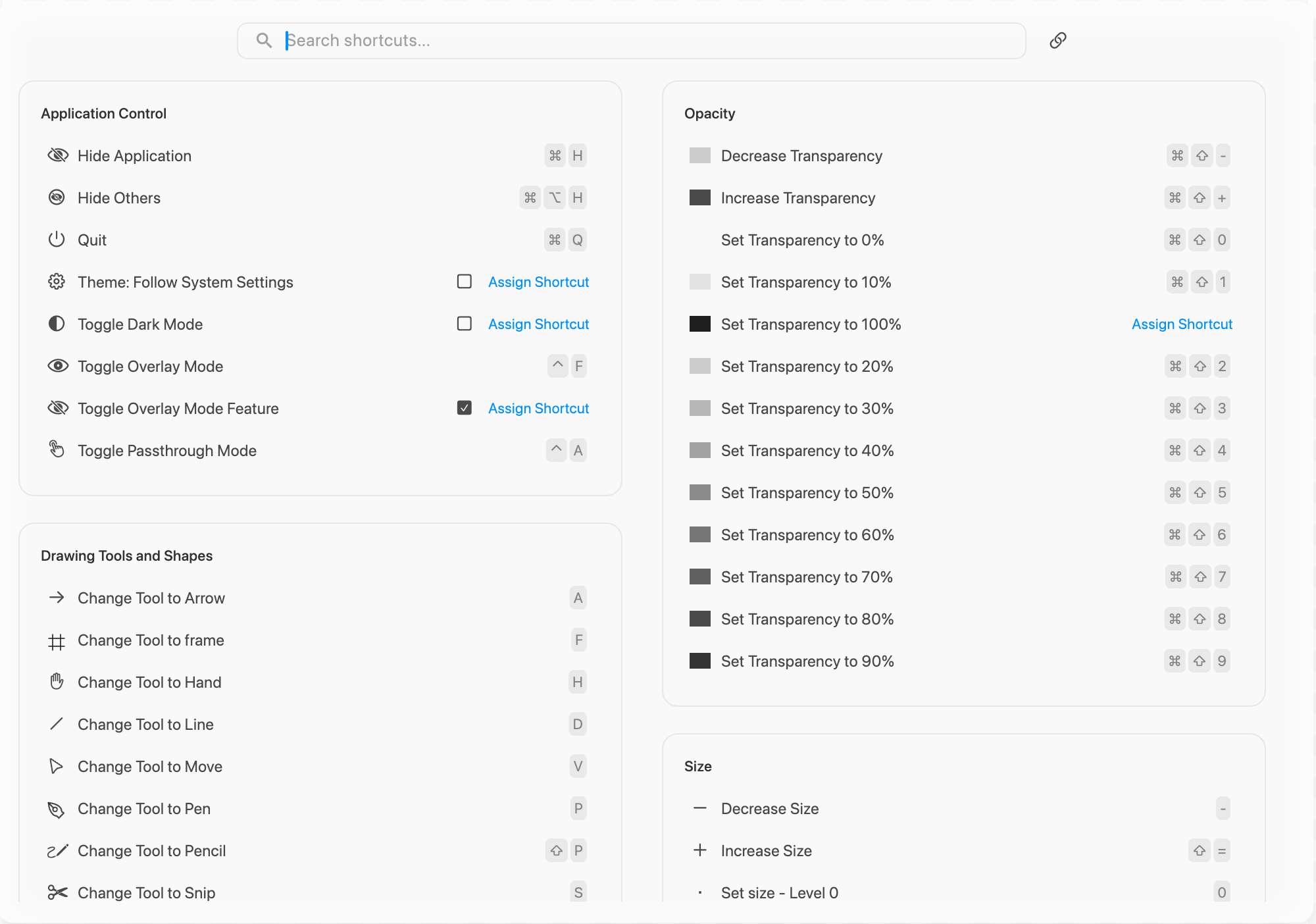
To rebind one:
Hover a command row to reveal its action buttons.
Click the record button and press your new key combination. It saves immediately.
Use the trash button to remove a shortcut (the command stays available in the palette), or reset to restore the default.
If a new binding conflicts with another command, a warning appears and a context picker lets you set when each command is active, so two commands can share a chord as long as their contexts do not overlap (for example Cmd+B for Bold while editing text, and something else on the canvas).
Platform key convention
| This page says | macOS | Windows |
|---|---|---|
Cmd | Command | Ctrl |
Ctrl | Control | Ctrl |
Alt | Option | Alt |
Shift | Shift | Shift |
Read every Cmd below as Ctrl on Windows. Where that substitution would collide with an essential shortcut, Brilliant remaps or unbinds the command; those cases show a different value in the Windows column, and the exceptions are summarized under Windows differences. Anything marked "palette" has no default key and is run from the command palette (Cmd+Shift+P), where you can also assign it a key.
Essentials
Learn these first.
| Action | macOS | Windows |
|---|---|---|
| Move tool | V | V |
| Undo / Redo | Cmd+Z / Cmd+Shift+Z | Ctrl+Z / Ctrl+Shift+Z |
| Global search | Cmd+K | Ctrl+K |
| Command palette | Cmd+Shift+P | Ctrl+Shift+P |
| AI input | / | / |
| Shortcuts reference | Shift+? | Shift+? |
| Settings | Cmd+, | Ctrl+, |
Tools
| Tool | macOS | Windows |
|---|---|---|
| Move | V | V |
| Hand | H | H |
| Pen | P | P |
| Pencil | Shift+P | Shift+P |
| Rectangle (fill) | R | R |
| Rectangle (stroke) | Shift+R | Shift+R |
| Circle (fill) | O | O |
| Circle (stroke) | Shift+O | Shift+O |
| Line | L | L |
| Arrow | Shift+L | Shift+L |
| Text | T | T |
| Frame | F | F |
| Snip (screen capture) | S | Not available |
| Scale mode (toggle) | K | K |
Hold Space for a temporary hand tool (release to return). While drawing, hold Shift to constrain proportions and Space to reposition the in-progress shape.
Selection and navigation
| Action | macOS | Windows |
|---|---|---|
| Select all | Cmd+A | Ctrl+A |
| Select previous sibling | Tab | Tab |
| Select next sibling | Shift+Tab | Shift+Tab |
| Enter frame / edit element | Enter | Enter |
| Select parent frame | Shift+Enter | Shift+Enter |
| Exit / cancel (context-aware) | Escape | Escape |
| Rename selected layer | Cmd+R | Ctrl+R |
| Delete selected | Backspace | Backspace |
| Hide / show selection | Cmd+Shift+H | Ctrl+Shift+H |
A single Escape picks the most specific target: close the command palette, exit eyedropper, cancel a label edit, exit crop, clear a vector selection, exit vector or mask edit, close the AI chat, then clear the canvas selection.
Tabs
Open projects and the home screen live as tabs in the top island. These move between them.
| Action | macOS | Windows |
|---|---|---|
| Next tab | Ctrl+Tab | Ctrl+Tab |
| Previous tab | Ctrl+Shift+Tab | Ctrl+Shift+Tab |
| Go to home | Cmd+Ctrl+0 | Ctrl+0 |
| Jump to tab 1 to 9 | Cmd+Ctrl+1 to 9 | Ctrl+1 to 9 |
Middle-click a tab to close it, and drag tabs to reorder. On macOS, Cmd+Ctrl+0 to 9 is a shared chord: with an element selected it sets the rotation level, and with nothing selected it jumps to a tab (home is 0).
Move and transform
| Action | macOS | Windows |
|---|---|---|
| Nudge 1px | Arrow keys | Arrow keys |
| Nudge 10px | Shift+Arrow | Shift+Arrow |
| Flip horizontally | Shift+H | Shift+H |
| Flip vertically | Shift+V | Shift+V |
Modifiers while dragging: Alt duplicates while moving, Shift constrains to one axis. While resizing a handle: Shift keeps aspect ratio, Ctrl enters scale mode (also scales fonts, strokes, radii, and children), Cmd preserves an image crop in place. Alt+hover shows distance measurements to the hovered element.
Clipboard
| Action | macOS | Windows |
|---|---|---|
| Copy | Cmd+C | Ctrl+C |
| Cut | Cmd+X | Ctrl+X |
| Paste | Cmd+V | Ctrl+V |
| Duplicate | Cmd+D | Ctrl+D |
| Delete | Backspace | Backspace |
Arrange
Align and distribute
| Action | macOS | Windows |
|---|---|---|
| Align left / right | Alt+Shift+L / Alt+Shift+R | Alt+Shift+L / Alt+Shift+R |
| Align top / bottom | Alt+Shift+T / Alt+Shift+B | Alt+Shift+T / Alt+Shift+B |
| Center horizontally / vertically | Alt+H / Alt+V | Alt+H / Alt+V |
| Align horizontally / vertically | Alt+Shift+H / Alt+Shift+V | Alt+Shift+H / Alt+Shift+V |
| Distribute horizontally / vertically | Ctrl+Alt+H / Ctrl+Alt+V | Ctrl+Alt+H / Ctrl+Alt+V |
| Fit to parent | Ctrl+Alt+F | Ctrl+Alt+F |
Layer order
| Action | macOS | Windows |
|---|---|---|
| Bring to front / Send to back | ] / [ | ] / [ |
| Bring forward / Send backward | Cmd+] / Cmd+[ | Ctrl+] / Ctrl+[ |
Group, frame, boolean
| Action | macOS | Windows |
|---|---|---|
| Group | Cmd+G | Ctrl+G |
| Ungroup | Cmd+Shift+G | Ctrl+Shift+G |
| Frame selection | Cmd+F | Ctrl+F |
| Add auto layout | Shift+A | Shift+A |
| Flatten to a single vector | Cmd+Enter | Ctrl+Enter |
| Boolean union | Alt+Shift+U | Alt+Shift+U |
| Boolean subtract | Alt+Shift+S | Alt+Shift+S |
| Boolean intersect | Alt+Shift+I | Alt+Shift+I |
| Boolean exclude | Alt+Shift+E | Alt+Shift+E |
| Mask | Cmd+Ctrl+M | Ctrl+M |
| Outline text (text to path) | Cmd+Ctrl+O | Unbound (palette) |
Boolean ops need two or more elements. If a boolean or mask group is already selected, the same shortcut switches its operation type.
Components
| Action | macOS | Windows |
|---|---|---|
| Create component | Cmd+Alt+K | Ctrl+Alt+K |
| Detach instance | Cmd+Alt+B | Ctrl+Alt+B |
| Create instance | palette | palette |
| Create component set | palette | palette |
| Go to master | palette | palette |
| Reset instance overrides | palette | palette |
| Push overrides to master | palette | palette |
Text
| Action | macOS | Windows |
|---|---|---|
| Bold | Cmd+B | Ctrl+B |
| Italic | Cmd+I | Ctrl+I |
| Underline | Cmd+U | Ctrl+U |
| Align text left | Cmd+Alt+L | Ctrl+Alt+L |
| Align text center | Cmd+Alt+T | Ctrl+Alt+T |
| Align text right | Cmd+Alt+R | Ctrl+Alt+R |
| Outline text | Cmd+Ctrl+O | Unbound (palette) |
| Font selector | Cmd+Shift+F | Ctrl+Shift+F |
Text sizing, line height, font weight, and text direction have no default keys; set them from the Typography section or the command palette.
Color, fill, and stroke
| Action | macOS | Windows |
|---|---|---|
| Add fill / Remove fill | Shift+F / Alt+F | Shift+F / Alt+F |
| Add stroke / Remove stroke | Shift+S / Alt+S | Shift+S / Alt+S |
| Swap fill and stroke | Shift+X | Shift+X |
| Open color selector | Ctrl+C | Alt+C |
| Eyedropper | Ctrl+Shift+C | Alt+Shift+C |
Quick colors
The quick-color chords are macOS defaults. On Windows they are unbound (they collide with core editing shortcuts), so set color from the inspector or the palette.
| Color | macOS | Windows |
|---|---|---|
| Red / Green / Blue | Ctrl+R / Ctrl+G / Ctrl+B | Unbound |
| Yellow / Orange / Purple | Ctrl+Y / Ctrl+O / Ctrl+P | Unbound |
| White / Black | Ctrl+W / Ctrl+K | Unbound |
| Gradient (dark) / (light) | Ctrl+D / Ctrl+L | Unbound |
Levels
Level keys jump a property to a preset step.
| Action | macOS | Windows |
|---|---|---|
| Size level 0 to 9 (drawing tools) | 0 to 9 | 0 to 9 |
| Increase / decrease size | Shift+= / - | = / - |
| Transparency 0% to 90% | Cmd+Shift+0 to 9 | Ctrl+Shift+0 to 9 |
| Increase / decrease transparency | Cmd+Shift+= / Cmd+Shift+- | Ctrl+Shift+= / Ctrl+Shift+- |
| Corner radius level 0 to 9 | Cmd+Alt+0 to 9 | Ctrl+Alt+0 to 9 |
| Increase / decrease radius | Cmd+Alt+Shift+= / Cmd+Alt+- | Ctrl+Alt+Shift+= / Ctrl+Alt+- |
| Scale level 0 to 9 | Alt+0 to 9 | Unbound |
| Scale up / down | Alt+Shift+= / Alt+- | Alt+Shift+= / Alt+- |
| Rotation level 0 to 9 (clock positions) | Cmd+Ctrl+0 to 9 | Alt+Shift+0 to 9 |
| Increase / decrease rotation | Cmd+Ctrl+Shift+= / Cmd+Ctrl+- | Shift+= / Shift+- |
Rotation levels use a clock metaphor: level 1 is 30 degrees, level 2 is 60, and so on, in 30-degree steps.
Zoom and canvas view
| Action | macOS | Windows |
|---|---|---|
| Zoom in / out | Cmd+= / Cmd+- | Ctrl+= / Ctrl+- |
| Zoom 100% to 900% | 1 to 9 (Move or Hand tool) | 1 to 9 |
| Toggle zoom (current / last) | 0 (Move or Hand tool) | 0 |
| Center on selection | Cmd+Ctrl+C | Unbound (palette) |
| Zoom to selection | Cmd+Ctrl+F | Alt+Z |
| Fit all content | Cmd+Ctrl+A | Alt+A |
| Disable zoom out below 100% | Cmd+Ctrl+D | Alt+D |
Bare digits 0 to 9 control zoom in the Move and Hand tools, but control size levels while a drawing tool is active.
Grids and snapping
| Action | macOS | Windows |
|---|---|---|
| Toggle layout grids | Shift+G | Shift+G |
| Toggle pixel grid | Cmd+' | Ctrl+' |
| Toggle snap to pixel grid | Cmd+Shift+' | Ctrl+Shift+' |
| Toggle rulers | Shift+U | Shift+U |
Snap guides, dimension labels, vector snapping, and clearing ruler guides have no default keys; toggle them from the command palette.
Window, background, and overlay
| Action | macOS | Windows |
|---|---|---|
| Show / hide UI chrome | Cmd+\ | Ctrl+\ |
| Expand / collapse right-toolbar sections | Cmd+/ | Ctrl+/ |
| Toggle canvas background | Cmd+Shift+D | Ctrl+Shift+D |
| Toggle blackboard | Cmd+Shift+B | Ctrl+Shift+B |
| Toggle whiteboard | Cmd+Shift+W | Ctrl+Shift+W |
| Presentation mode | Alt+P | Alt+P |
| Clear all elements on canvas | C | C |
| Toggle overlay mode | Ctrl+F (global) | Not available |
| Toggle passthrough (overlay) | Ctrl+A (global) | Not available |
| Toggle desktop icons (overlay) | Ctrl+I | Not available |
Overlay mode is macOS only. Its Ctrl+F and Ctrl+A hotkeys are OS-level and fire even when Brilliant is unfocused.
Canvas and file management
| Action | macOS | Windows |
|---|---|---|
| New canvas | Cmd+N | Ctrl+N |
| Duplicate canvas | Cmd+Ctrl+N | Alt+N |
| New folder | Cmd+Shift+N | Ctrl+Shift+N |
| Rename canvas | Alt+Enter | Alt+Enter |
| Delete canvas | Cmd+Shift+Delete | Ctrl+Shift+Delete |
| Next / previous canvas | Alt+Right / Alt+Left | Alt+Right / Alt+Left |
| Previously active canvas | Ctrl+Alt+Left | Ctrl+Alt+Left |
| Focus active canvas in explorer | Cmd+Shift+K | Ctrl+Shift+K |
| Toggle expand/collapse all folders | Cmd+Shift+C | Ctrl+Shift+C |
| Open folder (workspace) | Cmd+O | Ctrl+O |
| Import | Cmd+Shift+O | Ctrl+Shift+O |
| Save as | Cmd+Shift+S | Ctrl+Shift+S |
| Export selection to PNG | Cmd+E | Ctrl+E |
Cmd+E is the only export shortcut. Every other export and copy-as format is run from the command palette or the right-click menus.
Panels and search
| Action | macOS | Windows |
|---|---|---|
| Global search (all categories) | Cmd+K | Ctrl+K |
| Command palette (commands only) | Cmd+Shift+P | Ctrl+Shift+P |
| Canvas search | Cmd+P | Ctrl+P |
| Layer search | Cmd+L | Ctrl+L |
| Chat search | Cmd+Shift+I | Ctrl+Shift+I |
| Font selector | Cmd+Shift+F | Ctrl+Shift+F |
| Settings | Cmd+, | Ctrl+, |
| Combos | Cmd+Shift+M | Ctrl+Shift+M |
| Toggle left / right / bottom toolbar | Cmd+Shift+Left / Right / Down | Ctrl+Shift+Left / Right / Down |
| Focus file explorer | Cmd+Shift+E | Ctrl+Shift+E |
| Focus layers explorer | Cmd+Shift+R | Ctrl+Shift+R |
| Focus AI input | / | / |
| Check for updates | Cmd+Shift+U | Ctrl+Shift+U |
AI chat
| Action | macOS | Windows |
|---|---|---|
| Focus chat session 1 to 9 | Cmd+1 to Cmd+9 | Alt+1 to Alt+9 |
| Focus chat session 10 | Cmd+0 | Alt+0 |
| Next / previous chat | Cmd+Shift+] / Cmd+Shift+[ | Ctrl+Shift+] / Ctrl+Shift+[ |
| New chat (when the AI input is focused) | Cmd+N | Ctrl+N |
| Toggle chat explorer | Cmd+Shift+A | Ctrl+Shift+A |
| Close chat (when chat is focused) | Cmd+W | Ctrl+W |
Cmd+N creates a new chat only when the AI input is focused; with focus on the canvas it creates a new canvas. Cmd+Shift+A toggles the chat explorer at any time.
Combos (macros)
Combos chain several actions behind one shortcut. Open the Combos editor with Cmd+Shift+M.
| Combo | macOS | Windows |
|---|---|---|
| Yellow highlighter | Ctrl+Shift+Y | Ctrl+Shift+Y |
| Red highlighter | Ctrl+Shift+R | Unbound |
| Green highlighter | Ctrl+Shift+G | Unbound |
| Blue highlighter | Ctrl+Shift+B | Unbound |
Limitations
No chord (multi-key) shortcuts. Each shortcut is one key plus optional modifiers; you cannot bind sequences like
Ctrl+K, Ctrl+C. Use Combos (Cmd+Shift+M) to chain actions behind a single key.Hold-modifier behaviors are fixed.
Space(temporary hand),Alt+hover(measurements),Alt+drag(duplicate),Shift+drag(constrain), andCtrl+drag(scale) are built in and cannot be reassigned. TheKkey toggles persistent scale mode as an alternative to holdingCtrl.
Windows differences
On Windows, Brilliant substitutes Ctrl for Cmd automatically. A few macOS chords collide with essential Windows shortcuts, so they are either moved to a free chord or left unbound. Every one is reassignable in the Shortcuts panel and reachable from the command palette.
Remapped:
| Command | macOS | Windows |
|---|---|---|
| Fit all content | Cmd+Ctrl+A | Alt+A |
| Color selector | Ctrl+C | Alt+C |
| Eyedropper | Ctrl+Shift+C | Alt+Shift+C |
| Zoom to selection | Cmd+Ctrl+F | Alt+Z |
| Disable zoom out | Cmd+Ctrl+D | Alt+D |
| Duplicate canvas | Cmd+Ctrl+N | Alt+N |
| Increase size | Shift+= | = |
| Increase / decrease rotation | Cmd+Ctrl+Shift+= / Cmd+Ctrl+- | Shift+= / Shift+- |
| Rotation levels 0 to 9 | Cmd+Ctrl+0 to 9 | Alt+Shift+0 to 9 |
| Focus chat session 1 to 9 | Cmd+1 to 9 | Alt+1 to 9 |
| Focus chat session 10 | Cmd+0 | Alt+0 |
Unbound on Windows: overlay mode, passthrough, desktop icons, the snip tool, the scale levels, quick colors, gradient colors, Outline Text, Center on selection, and the blue, green, and red highlighter combos.
Next
Where these actions live in the UI: Quick Tour.
Change any binding: Settings.