Connect Codex
Drive Brilliant from OpenAI's Codex CLI. Like Claude Code, this one is nearly automatic: if Codex is installed, Brilliant registers itself on launch.
Prerequisites
The Codex CLI installed.
Brilliant open. The MCP server only runs while the app is running.
Setup
Automatic
If Brilliant finds a ~/.codex/ directory when it starts, it adds a brilliant entry to ~/.codex/config.toml for you and keeps the address in sync with whichever port it bound to. Nothing to click. Just restart your Codex session so it reads the updated config.
Manual toggle
To add or re-add the connection on demand:
Open Settings (
Cmd+,) and pick MCP Connections.Flip the Codex CLI row on.
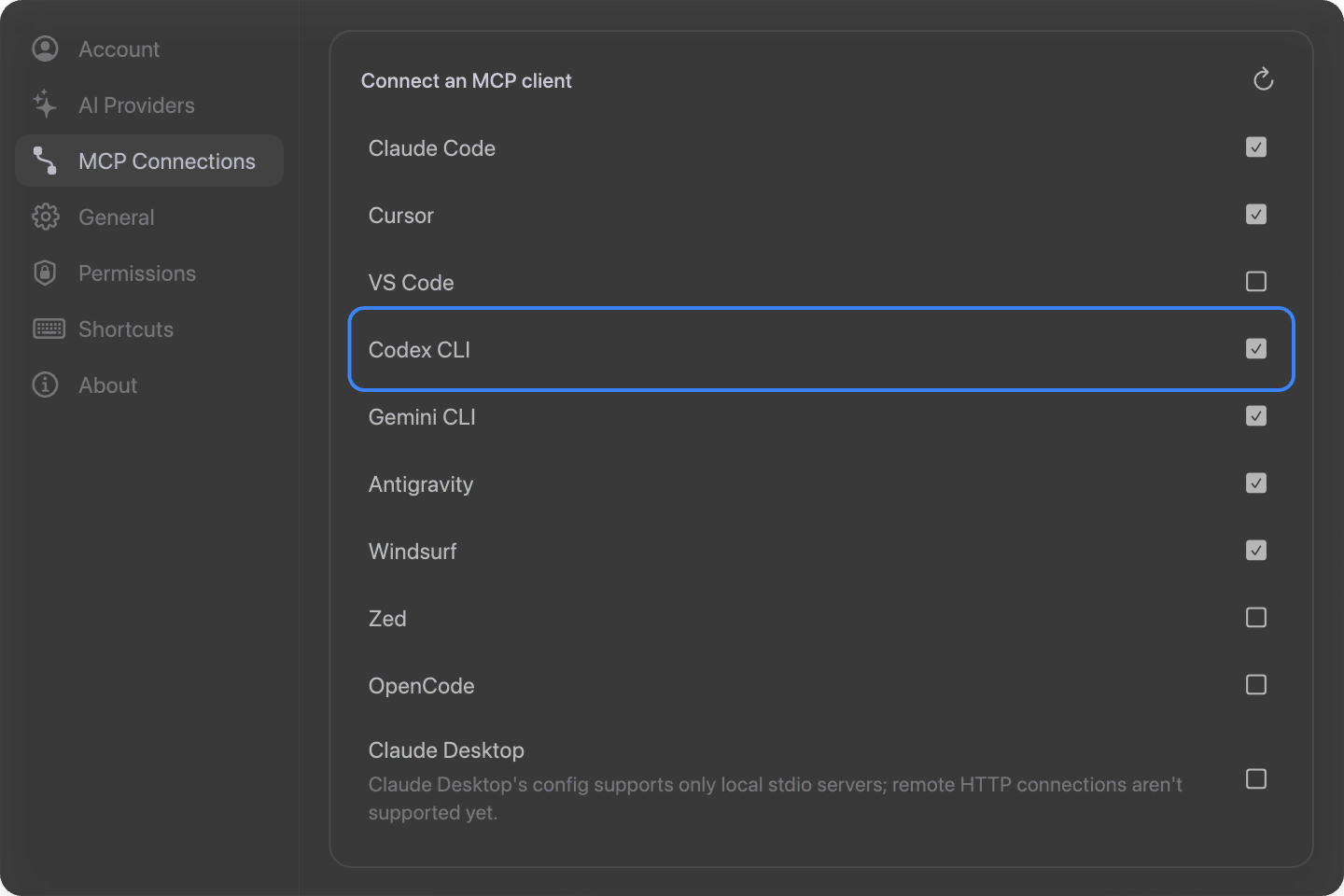
Then restart your Codex session.
By hand
The entry in ~/.codex/config.toml is a TOML section:
[mcp_servers.brilliant]
url = "http://127.0.0.1:3333/mcp"Use 3334 or 3335 if Brilliant reported a fallback port.
Try it
With Brilliant open, ask Codex to design:
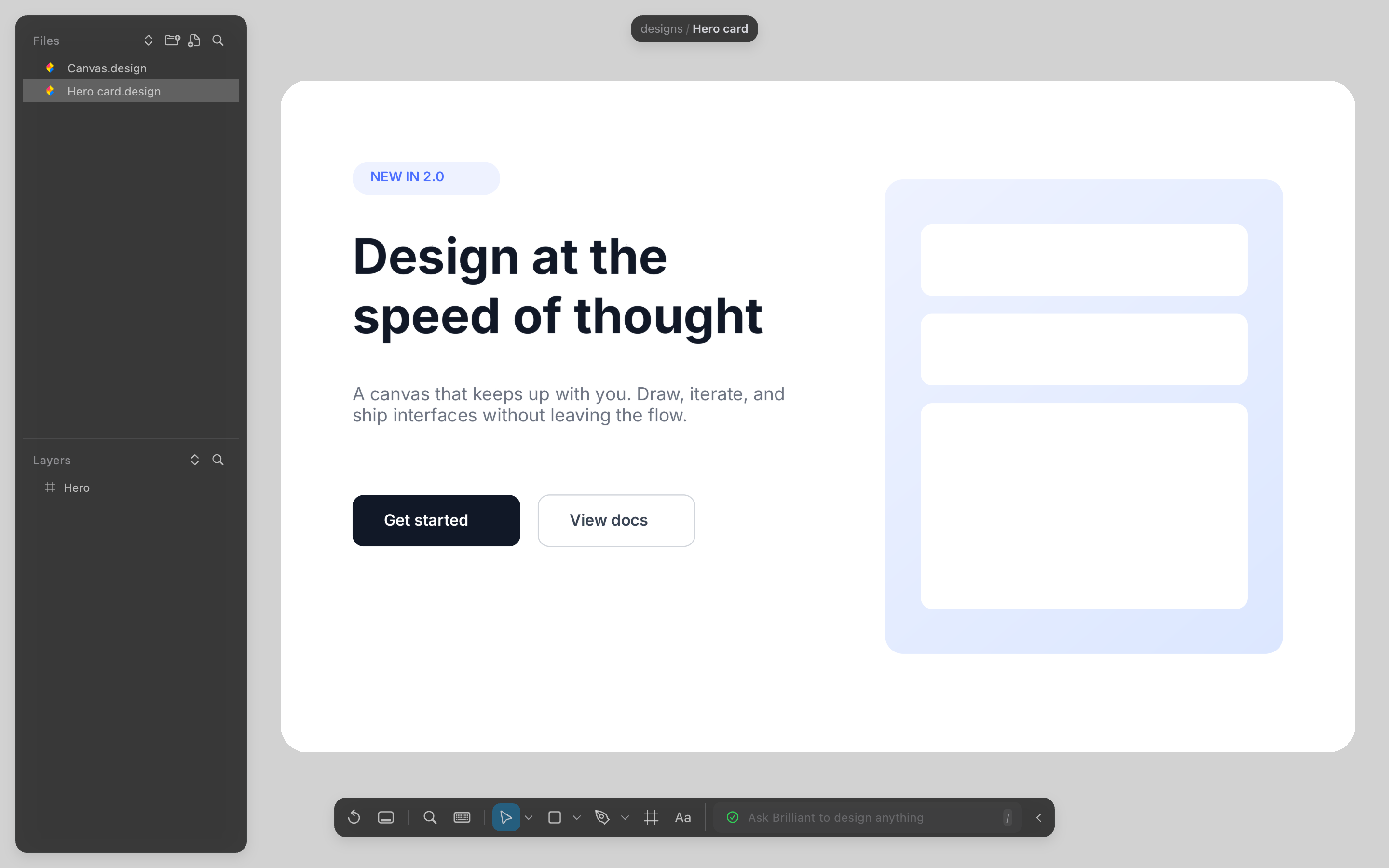
In Brilliant, lay out a dashboard with a KPI row and a chart placeholder.Read the Landing canvas in Brilliant and add a testimonials section that fits.Export the selected frame in Brilliant as SVG.
Troubleshooting
You restarted and nothing happened. That is expected. Codex spawns the
brilliantMCP server only when a session starts, not before, so restarting Brilliant alone shows no change. Start a Codex session and send a message. Thebrillianttools connect on that first call.Codex doesn't see the
brillianttools. Restart the Codex session; it readsconfig.tomlon startup.No entry appeared automatically. Brilliant only writes to
~/.codex/config.tomlwhen that directory already exists (so it never litters the home folder of non-Codex users). Create the directory or run Codex once, then reopen Brilliant, or add the connection from Settings.Calls fail. Brilliant must be running. Launch it and retry.
Port mismatch. Brilliant rewrites the
urlto the current port every launch, so restarting Brilliant then your Codex session resolves a stale address. You can also re-toggle the row in Settings.