Overlay mode
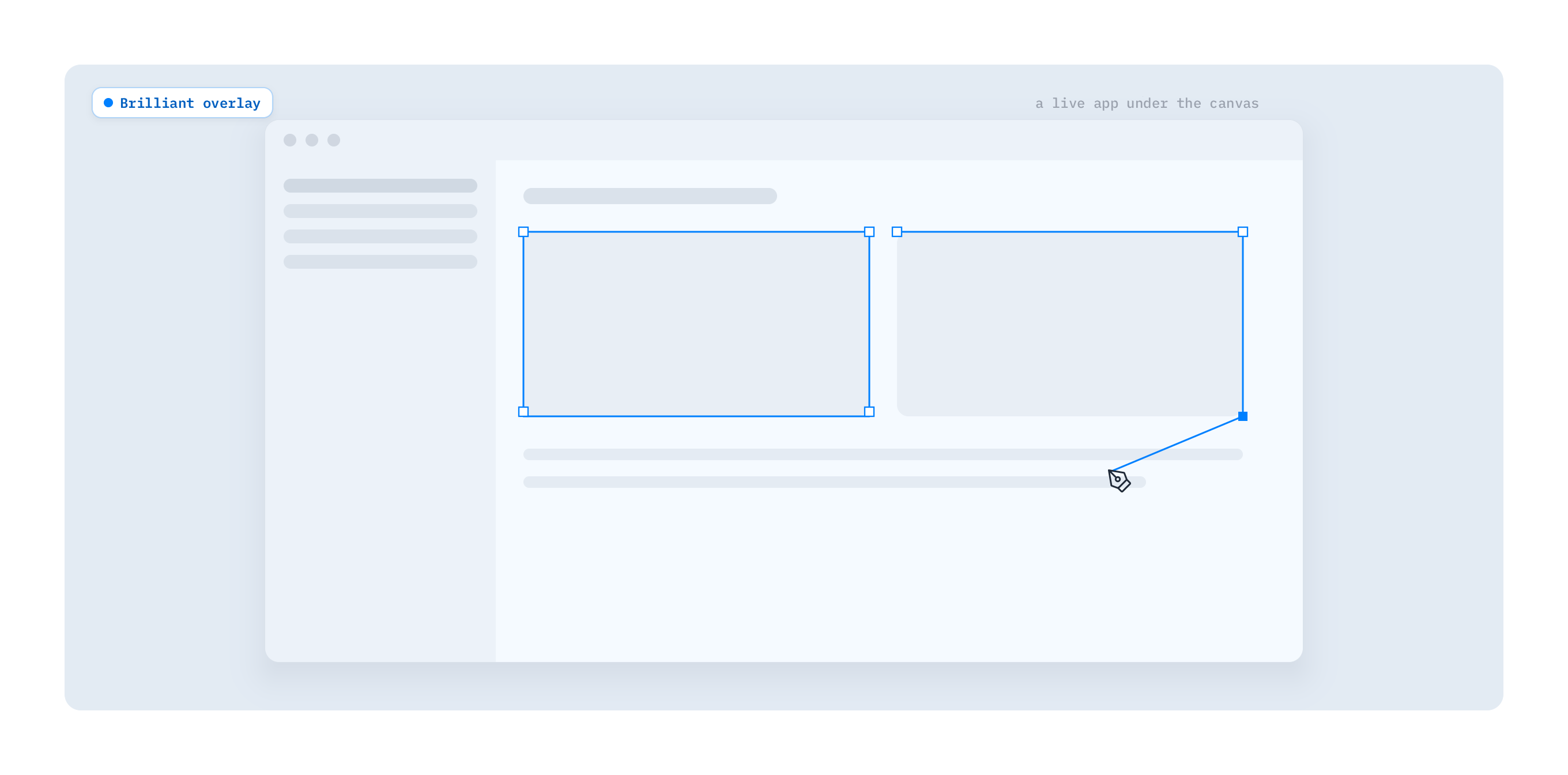
Overlay mode floats Brilliant above everything else on your screen as a transparent, always-on-top layer. Instead of designing in a window, you design directly over your desktop, a browser, or any running app.
What it's for
The canvas becomes see-through, so whatever is behind Brilliant shows through your work. That opens up a few things a normal window can't:
Trace an existing UI. Pull up a screenshot or a live app and draw straight over it to rebuild it in Brilliant.
Design over a live app. Sketch a new screen on top of the real thing while it runs, so your mockup lines up with the actual layout.
Compare pixel for pixel. Drop your design over the reference and nudge until they match exactly.
Turn it on first
Overlay mode is macOS only, and it ships turned off. Enable it before the shortcut will do anything:
Open Settings with ⌘, and go to the General pane.
Switch on Overlay Mode.
While you're there, use Open Accessibility Settings and grant Brilliant accessibility access. The global hotkey needs it to summon Brilliant from any app.
The toggle sticks across launches, so this is a one-time setup. Flip it off and the hotkey goes quiet again (and if you're currently in overlay, Brilliant drops you back to your normal window).
Enter and leave
With the setting on, press ⌃F to summon the overlay, and the same shortcut again to dismiss it. This is a global hotkey: it fires even when Brilliant isn't the focused app, so you can call it up from whatever you're working over.
Click through to what's underneath
By default the overlay catches your clicks, the same as any window. When you want to reach the app behind it, turn on passthrough with ⌃A. Your clicks and drags fall straight through Brilliant to whatever sits below, so you can scroll a page or operate an app while your design stays pinned on top. Press ⌃A again to take control back. Passthrough only applies while you're in overlay.
Clear the backdrop
For a cleaner surface to work over, hide your desktop icons with ⌃I. It's a toggle, so the same shortcut brings them back.
Your window comes back
Leaving overlay restores the exact window you had before. Brilliant saves your studio window's position, size, and whether it was full screen, maximized, or minimized when you enter overlay, then puts all of it back when you exit. Your zoom and pan return to where they were too, so dropping into overlay and back out never disturbs your studio setup.