How sync works
This is the honest version of what leaves your machine and when. The short answer: nothing does until you publish, and after that, the project you are working in stays in step with the cloud automatically.
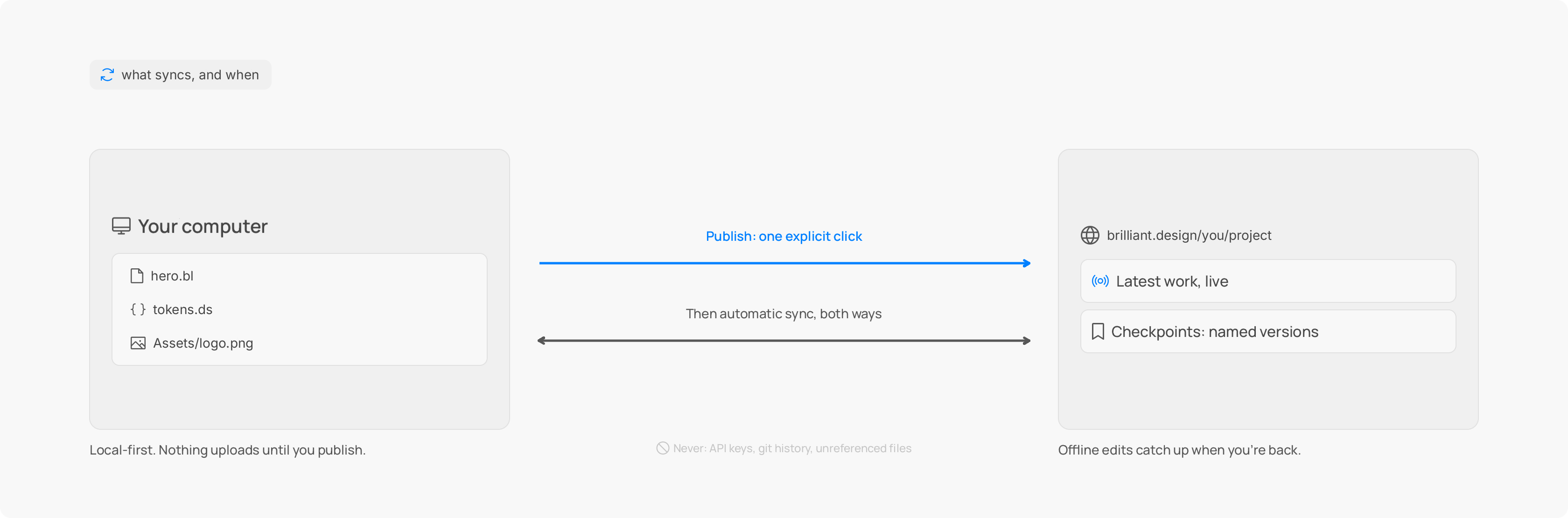
Nothing uploads until you publish
Signed out, or signed in but with a project you have not published, no design content reaches Brilliant's servers. Full stop. Signing in does not quietly sync your local canvases.
Publishing is the moment. It is an explicit act, and it is the point at which a project's contents go to the cloud. Everything below only applies to a project you have chosen to publish. See Publish a project for how that works.
What syncs
Once a project is published, sync covers the design and only the design:
Your canvases (
.blfiles).Your design systems (
.dsfiles).The images your canvases actually use.
A small preview thumbnail of each canvas (it is what project tiles show).
It does not upload your Git history, loose scratch files, or other files your canvases do not reference. It is your design, not your whole folder.
One thing to know: the names of your files and canvases are visible to the service (they have to be, to sync them), even though the design content stays scoped to what you publish.
When it syncs
While a published project is open in your active tab, sync is automatic and goes both ways:
Outbound: a moment after you stop editing, your changes go up. This includes changes made outside the app entirely. If an agent, a script, or a Git operation edits your files while the project is open, Brilliant notices and uploads those too.
Inbound: edits made to the project elsewhere (a collaborator, a change pushed to the repo) come down to you, roughly every minute or so and immediately when you focus the app.
Sync follows the tab you are in. The project in your active tab is the one that syncs; projects in other tabs wait their turn.
Working offline
Lose your connection and nothing stops. Keep designing. Your changes queue up locally, survive a restart, and upload the moment you are back online.
Work you did while away lands in the project's history as a single checkpoint named Changes made while away, so the gap is marked rather than smeared across the timeline.
Conflicts are never a silent overwrite
If the cloud version of a file moved on while you were editing the same file, Brilliant does not quietly pick a winner and lose the other. It merges the two, element by element, so both your edits and the cloud's changes are kept, and where the exact same property was changed on both sides it keeps your value. Before writing the merge it saves the previous cloud version as a checkpoint (Pre-merge server state), then tells you once, with a single notification, that the two were combined and nothing was lost.
When the two versions cannot be merged cleanly, it falls back to keeping your local version live and saving the server's version as a checkpoint named Pre-conflict server state instead, again with one notification.
Nothing is thrown away. Whatever did not survive the merge is sitting in a checkpoint you can go back to. Inbound changes also never overwrite a file you have unsaved edits in.
Sync health: no news is good news
You do not have to babysit sync. When everything is flowing, there is nothing to see. If sync runs into trouble, a red notification dot appears in the top island, and it stays until sync recovers on its own. As long as there is no red dot, your work is syncing.
Live sessions make the web view live
While a published project is open, its edits stream continuously, element by element. That is what makes the web view genuinely live: someone watching your public project in a browser sees your changes as you make them, not on a delay. More on watching and co-editing in Collaborate live.
Next
Publish, and the rest of this kicks in: Publish a project.
Design together in real time: Collaborate live.