Connect GitHub Copilot (VS Code)
Let GitHub Copilot's agent mode in VS Code design on your Brilliant canvas. Brilliant registers into VS Code's own MCP config, so Copilot picks the brilliant tools up automatically.
Prerequisites
VS Code with GitHub Copilot and its agent mode available.
Brilliant open. The MCP server only runs while the app is running.
Setup
Open Settings (
Cmd+,) in Brilliant and pick MCP Connections.Flip the VS Code row on.
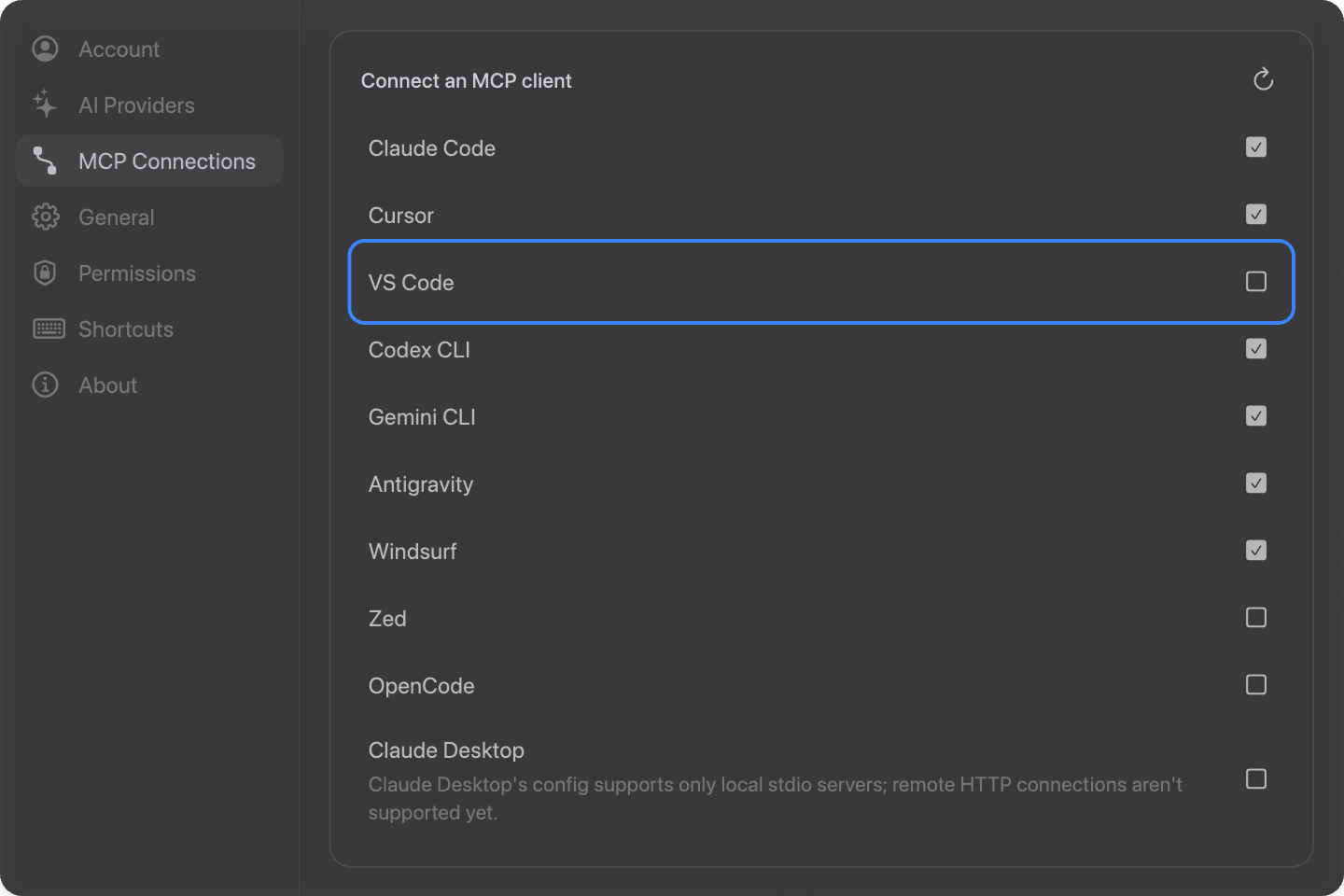
Brilliant writes a brilliant server into VS Code's user MCP config (.../Code/User/mcp.json), preserving any comments already in the file. Reload VS Code so it loads the server.
By hand
The file lives at ~/Library/Application Support/Code/User/mcp.json on macOS, %APPDATA%\Code\User\mcp.json on Windows, and ~/.config/Code/User/mcp.json on Linux. Add Brilliant under servers:
{
  "servers": {
    "brilliant": {
      "type": "http",
      "url": "http://127.0.0.1:3333/mcp"
    }
  }
}Use 3334 or 3335 if Brilliant fell back to those ports.
Try it
Open Copilot Chat in agent mode, with Brilliant open, and describe what you want:
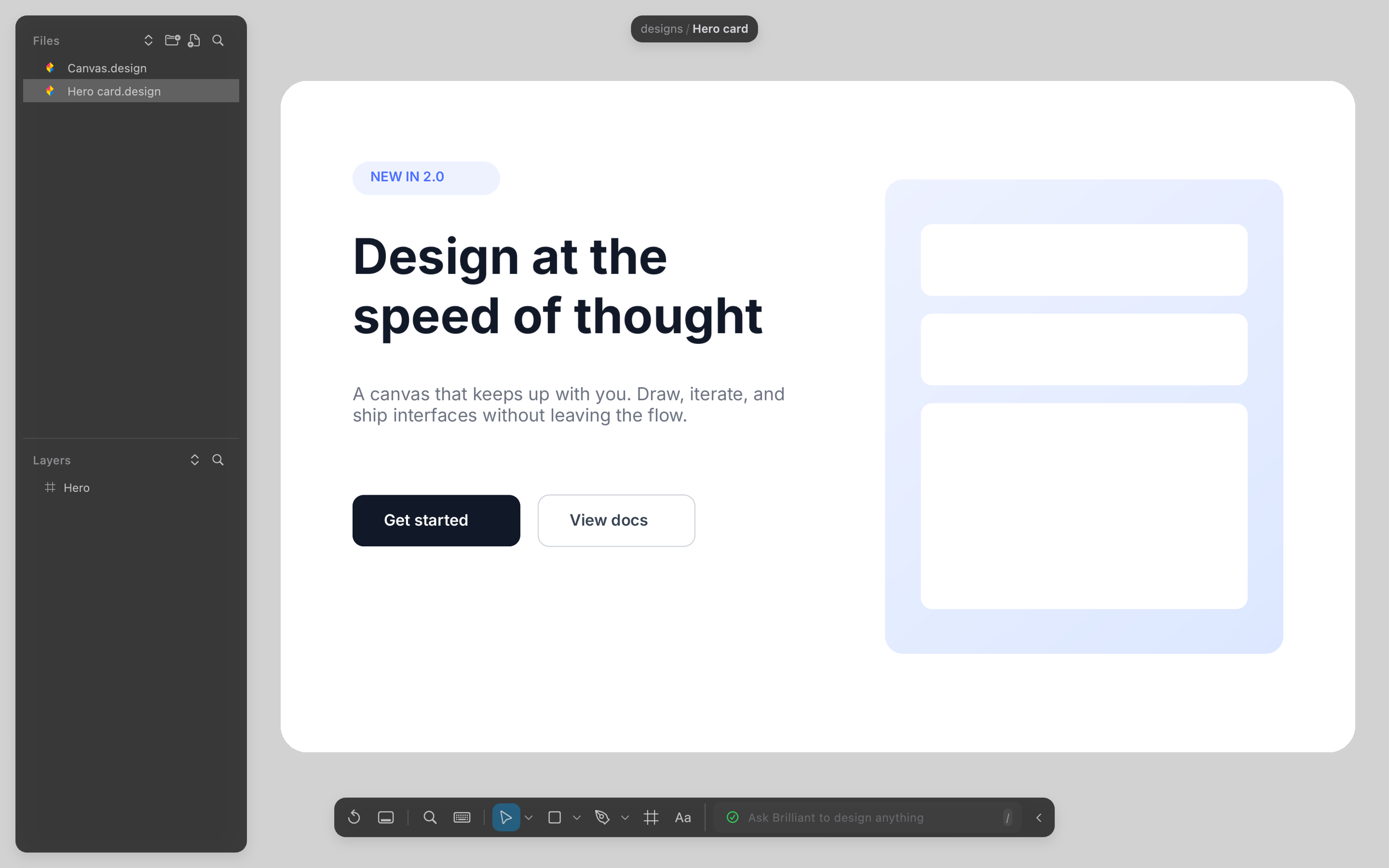
In Brilliant, build a documentation landing page with a hero and a feature grid.Read my selection in Brilliant and produce a dark-mode version of it.Create a component set for buttons in Brilliant: primary, secondary, and ghost.
Troubleshooting
Copilot doesn't show the
brillianttools. Reload the VS Code window. Make sure you are in Copilot's agent mode, which is what can call MCP tools.Calls fail or time out. Brilliant must be open. Launch it and retry.
Port mismatch. If Brilliant is on 3334 or 3335, re-toggle the VS Code row in Settings to rewrite the current address, then reload VS Code.
The row shows unchecked but
mcp.jsonhas abrilliantentry. The URL points elsewhere. Toggle on to rewrite it to the correct local address.