Security and your data
Brilliant is a local-first desktop app. Your designs are plain files on your disk, your AI runs on Brilliant AI or on your own key, your choice, and the app is precise about what it sends over the network and when. This page lays out where everything lives and what talks to what.
Your API keys
The built-in AI has two lanes. Brilliant AI (the default) routes your request through Brilliant's proxy to Google under Brilliant's own account, included with your plan; Brilliant records the usage rows for it (the model, token counts, cost, plan, and timestamps), never your prompt text or design content. Google (the Gemini API) processes those requests for Brilliant; payments are processed by Paddle as merchant of record. Your own AI (your own keys and coding agents) goes straight from the app to your provider (Anthropic, OpenAI, Google, OpenRouter, or a Claude Code login): a key you bring never routes through Brilliant's servers, your prompts and designs go from your machine to your provider, and you pay your provider directly.
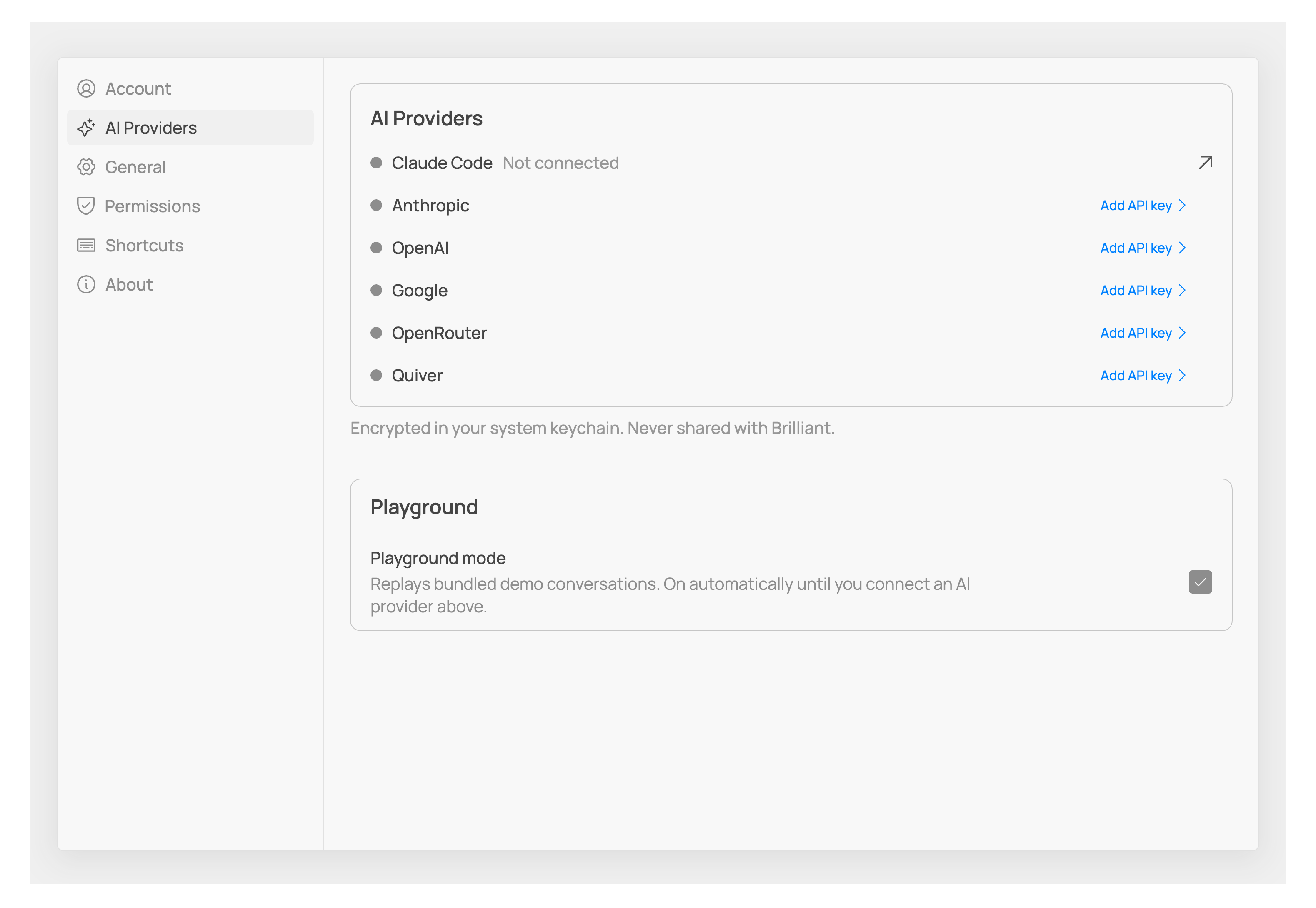
Keys are stored in your operating system's own credential store: macOS Keychain, or Windows Credential Manager. Brilliant also reads provider environment variables (ANTHROPIC_API_KEY, OPENAI_API_KEY, GOOGLE_API_KEY, OPENROUTER_API_KEY) as a fallback if a key isn't in the credential store.
A key you paste never appears in a chat transcript, your conversation history, or a prompt draft. For the full breakdown of what travels with each message and what never does, see Privacy and consent.
Your designs
Brilliant is local-first. A workspace is a folder, and every canvas is a plain .bl file inside it. When you are signed out, or working in a project you have not published, nothing about your design reaches Brilliant's servers. Open a folder and Brilliant works directly against those files.
Because the format is plain, deterministic Blueprint text, you can put your workspace under Git and diff, branch, and review your designs like code. Details are in Canvases and files.
Publishing is the one deliberate act that changes this. When you publish a project to brilliant.design, its canvases, design systems, and the images those canvases use are uploaded, and from then on that project syncs automatically in both directions while you have it open. That is the whole story of when design content leaves your machine: you sign in, and you publish. The full picture, including exactly what syncs and what never does, is in How sync works.
Sending a design to the AI is separate and always your choice: the built-in chat includes a text outline of the canvas so the model can see your work in progress. On your own key it goes straight to the provider you connected; on Brilliant AI it routes through Brilliant's proxy to Google, and Brilliant records only the usage rows, never the outline's contents. Privacy and consent is exact about what that outline contains and where it goes.
What talks to the network
Brilliant is local-first, not offline-only. Some things do reach Brilliant's servers (api.brilliant.design), and it's worth being clear about which:
Update checks and downloads. The app checks for new versions and downloads them when you update.
Activation and sign-in. Account tokens are exchanged and refreshed here when you sign in.
Published projects. Once you publish a project, its canvases and the assets they use sync to brilliant.design while the project is open. Nothing else on your disk goes with them. See How sync works.
Settings sync. While you are signed in, a few preferences follow your account: keyboard shortcuts, theme, density, and any extra models you have added. Your API keys are never part of this.
Built-in AI usage. On your own key the built-in chat is free up to a daily limit, so the app reports a running count of the messages you send: a bare number, with no prompt, canvas, or design content attached. On Brilliant AI the request routes through Brilliant's proxy and is recorded in usage rows (the model, token counts, cost, plan, and timestamps), never prompt or design content. More on the limits in Plans and billing.
Usage data. Anonymous analytics always, and account-tied analytics only if you opt in (see below).
Feedback you send. When you press Send on the feedback card, your message posts to Brilliant's servers with a source label and your install id (plus a prompt id when it answers a Brilliant prompt, and a sign-in token when you are signed in, so the team can reply). Any extras you tick, such as app version, a recent error log, the chat transcript, or a canvas screenshot, ride along only then. Nothing posts until you press Send.
Feedback prompt checks. From launch onward, the app polls
api.brilliant.design/feedback/promptsevery 30 minutes with your install id, to see whether the Brilliant team has a targeted question for you. This runs whether or not you ever open feedback; it carries only the install id and brings back any waiting prompt.
What never goes to Brilliant's servers:
Unpublished designs. Until you publish a project, its
.blfiles stay on your disk.Your own-key prompts. What you type into the built-in chat on your own key goes to your provider, not to Brilliant.
Your API keys. Provider keys stay in your OS credential store and go only to that provider.
Your own AI traffic is separate from all of this: it goes directly from the app to whichever provider you connected, never through Brilliant. Brilliant AI traffic routes through Brilliant's proxy to Google, recorded in the usage rows described above, never your prompt or design content.
Usage data
Brilliant collects two tiers of usage data, and you control the second one.
Anonymous analytics are always collected. They carry a random per-install ID (a UUID generated once and regenerated if you reinstall) and never your account. The events are coarse: session start and end, active-time pings, and per-session interaction counts (how many times operations, undo, or redo ran), plus platform and app version. Counts and categories: no designs, no prompts.
Account-tied analytics are opt-in. Turn on Share Detailed Usage Data in Settings to tie usage data to your account and help improve Brilliant. It's off by default. When it's off, only the anonymous tier is sent, and your per-install ID never rides along with account-level events. When it's on, those events are tied to your account instead.
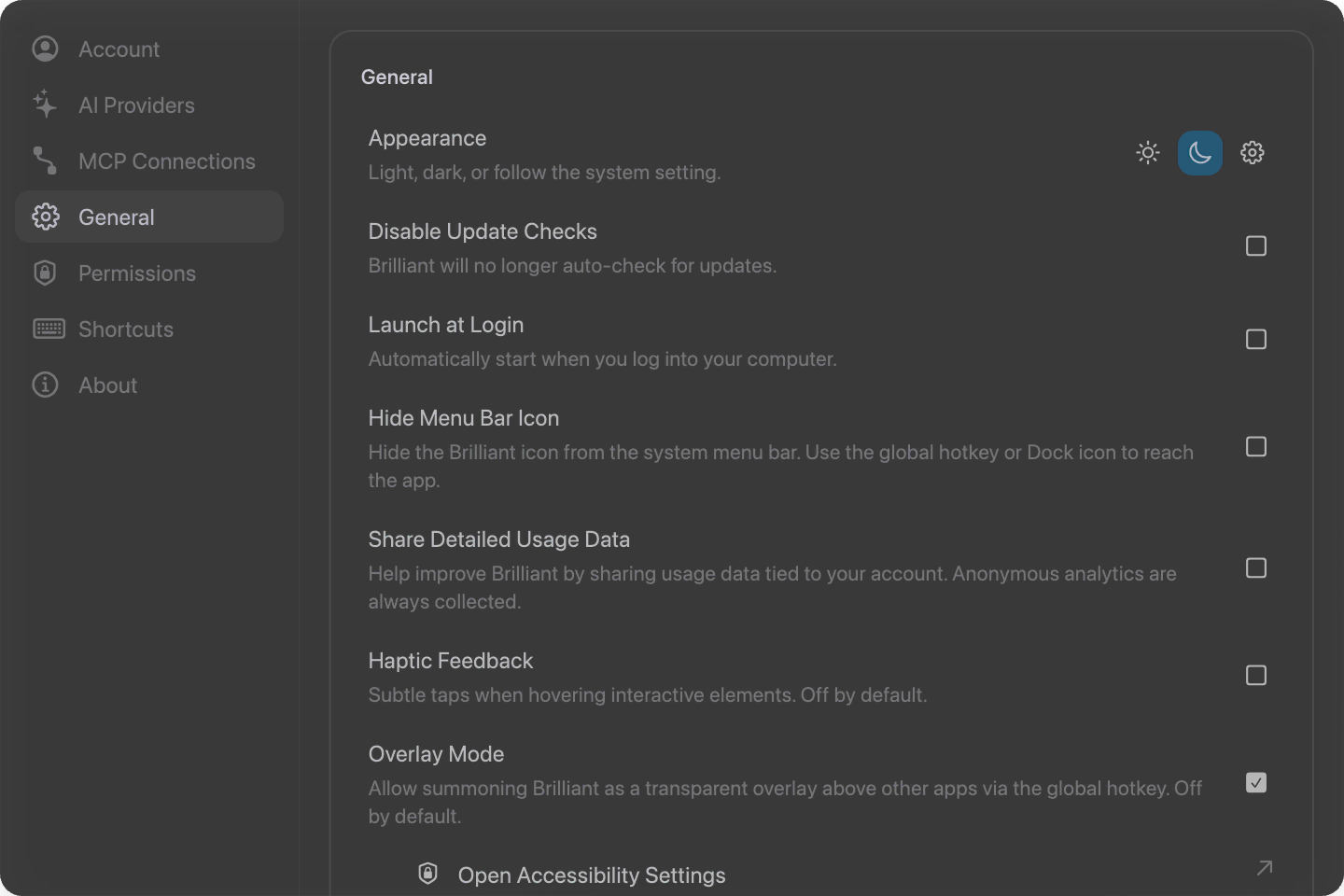
Either way, analytics are counts and categories, not content. Your designs and prompts are not part of them. More on the setting itself in Settings.
The local MCP server
While Brilliant is open, it runs a local server so external coding agents (Claude Code, Cursor, and the rest) can drive your canvas over MCP. That server binds to loopback only:
http://127.0.0.1:3333/mcpLocalhost only means it's reachable from your own machine, not from the network or other computers. If port 3333 is busy, Brilliant falls back to 3334, then 3335. The connection has no authentication, so treat it like any other local developer tool: any process on your machine can reach it while the app is running.
On the web (a brilliant.design tab) there is no server inside the browser. Instead, a small helper you install once (npx -y @brilliant-hq/mcp) runs on your machine and bridges your agent to the tab over loopback. The posture is deliberately tighter than the desktop endpoint:
Loopback only. The helper binds
127.0.0.1, never a network interface, so nothing off your machine can reach it.Origin-checked. The tab connection is accepted only from
https://brilliant.design, over a loopback host, and only with a pairing token or a helper you have already approved. A page from any other origin is refused.Approved per agent. An unrecognized helper has to be approved first, with an in-app card that names the agent, before it can touch your canvas. You can revoke that approval from Settings at any time.
Zero server involvement. None of this reaches Brilliant's servers. The agent, the helper, and the tab all talk over
127.0.0.1, so no MCP or design data leaves your computer. Safari cannot use this yet; Chrome, Edge, and Firefox can.
Setup for each agent is in Use with AI agents.
Next
What each message sends: Privacy and consent.
What publishing uploads and syncs: How sync works.
How designs live on disk: Canvases and files.