Sessions and chat
The built-in chat is built for long, parallel conversations. This page covers sessions and tabs, the follow-up composer, the chat explorer, the full slash-command list, and how to stop or revert a turn. To send your first prompt, start with Your First AI Chat.
Sessions and tabs
Each chat is a session with its own provider, model, thinking level, history, and context. Sessions run in parallel and persist between launches.
Start a new one three ways:
Submit a prompt from the bottom-toolbar input.
Click + in the chat panel header.
With the AI chat focused, press ⌘N.
Active sessions show as tabs to the right of the AI input:
Minimized: topic label, a processing spinner while it works, and a context-usage percentage. Click to expand, double-click to rename.
Expanded: the full chat panel with messages, attachments, and a follow-up input.
Drag tabs to reorder them; the toolbar scrolls when they overflow.
Shortcuts
| Action | Shortcut |
|---|---|
| Focus the AI input | / |
| Focus chat session 1 through 9 | ⌘1 to ⌘9 |
| Focus chat session 10 | ⌘0 |
| Focus next session | ⌘⇧] |
| Focus previous session | ⌘⇧[ |
| New chat (AI chat focused) | ⌘N |
| Close focused session | ⌘W |
| Toggle the chat explorer | ⌘⇧A |
| Search your chats | ⌘⇧I |
| Dismiss the chat panel | Esc |
Focusing a session by number opens the panel if it is hidden. Toggling the AI chat panel has no default shortcut, but you can assign one in the shortcuts view.
The follow-up composer
Very few designs land on the first prompt, and that is the point. Follow-ups see the full context of the canvas and the conversation, so you can speak in deltas. Send with Enter; add a line break without sending with ⇧Enter.
The composer has four typing helpers:
@mentions attach a canvas element by name. Type@, pick an element, and its structure and a render travel with your message.Attachments ride along too: paste an image with ⌘V, drag a file in, or click the paperclip. Each shows as a chip above the input with an X to remove before sending.
#hashtags open a dropdown of style and context modifiers (dark, mobile, minimal, and so on) that drop into your prompt./slash menu opens the slash commands plus recent sessions for a quick resume.
Prompt history: step through past prompts with ↑ and ↓ (or ⌃P and ⌃N). Reverse-search with ⌃R: type to filter, press it again to cycle matches. History is deduplicated and persists between launches.
Panel controls
Open or close: click the connection indicator in the bottom toolbar, or run Toggle AI Chat.
Rename: double-click the topic in the header, or use
/rename.Resize: drag the panel edges, or the divider between sessions.
Queue a follow-up: send while the model is still working and the message queues, then fires automatically when the current response finishes.
Edit and resend: click the edit icon on one of your messages to revise and resend it.
Copy chat: the header copy button exports the whole conversation as Markdown, with metadata (model, date, project, canvas, tokens, turns).
When your Brilliant AI usage runs out, the turn in flight finishes and only the next send is stopped: it opens the upgrade wall, a page over the editor (the same overlay as sign in) that offers the paid rungs and a bring-your-own-AI door. The message you sent is held and continues on its own once the wall clears, so nothing you typed is lost.
The chat explorer
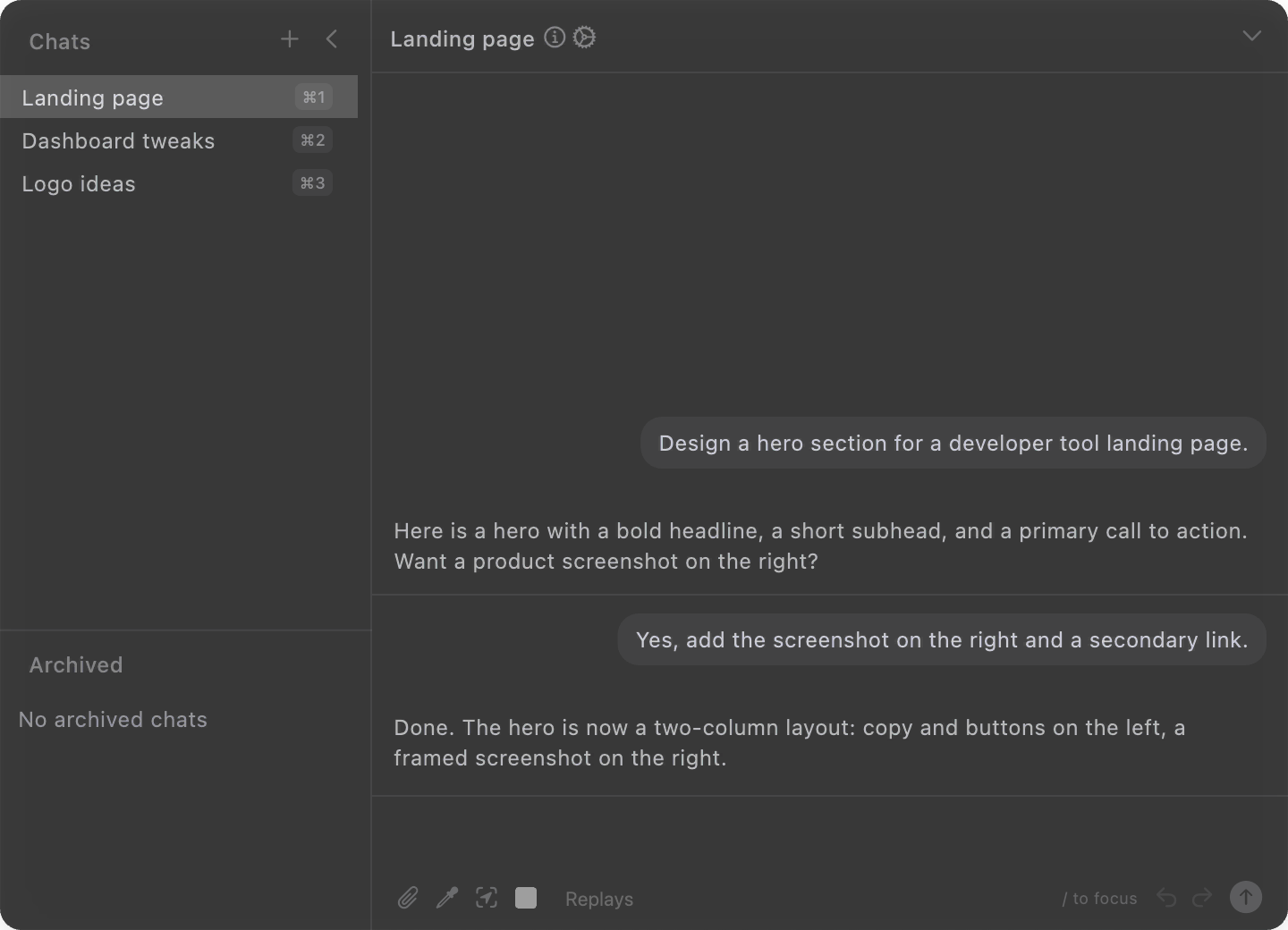
Toggle the explorer with ⌘⇧A to browse, search, and manage every session in a sidebar. Drag its divider to resize or collapse it.
Slash commands
Type these in the chat input. Some are provider-specific and only show when relevant.
| Command | Does |
|---|---|
/stop | Stop the current response |
/continue | Nudge the model to continue |
/context | Show context-window usage |
/usage | Show your usage: on Brilliant AI a percent used and a reset date, plus your own-AI count on Free |
/cost | Show cost and usage for this session (Claude Code and Anthropic only) |
/compact | Compact (summarize) conversation history |
/feedback | Classify the feedback (bug, feature request, question, or praise) on a quick card, then the agent routes it and takes it from there (uses one message) |
/archive | Archive the current chat |
/new (/clear) | Start a new chat |
/model | Change the model (provider-then-model picker) |
/rename | Rename the current chat, for example /rename My Chat |
/copy | Copy the last assistant message |
/help | Show available commands |
/login | Sign in to Claude (Claude Code only; typed directly, it does not appear in the autocomplete list) |
Stop, revert, redo
Click the stop button in the chat input bar, or type
/stop. The active request aborts immediately and no further tools run.Anything the AI already created before you stopped stays on the canvas.
The stopped turn's card has a Revert control that undoes everything that turn changed in one step, plus a Redo to bring it back. You can also undo normally.
For the in-app CLI providers (Claude Code and Codex), Brilliant keeps a single warm, long-lived process running across your turns rather than relaunching it per message, so follow-ups start faster and the session's history stays in place. Stopping a turn sends a control-request interrupt instead of killing the process, so it aborts cleanly and immediately, on Windows as well as macOS.
Next
See the full capability set: What the AI can do.
Understand what gets sent: Privacy and consent.