Teams
A team is a shared identity on brilliant.design that owns work on behalf of a group, so projects, handles, and billing belong to the team rather than to any one person. When someone leaves, the work stays.
A team is its own identity
A team has its own name and its own handle, and it lives in the same handle namespace as people: brilliant.design/acme resolves to the team when no person has claimed that handle first (users resolve first, teams second). A team has a profile page, owns projects directly, and can star and follow as itself.
Every project carries an owner, either a person or a team. A team-owned project counts against the team's storage, follows the team's plan rather than yours, and survives any single member leaving.
Free and paid teams
Teams are free to create, and a free team is a real team, not a trial:
Free team. Unlimited public projects, unlimited members, and 4 GB of pooled storage. Free forever.
Paid team. Everything a free team has, plus private projects and drops, unlimited editors on private work, and 1 TB of pooled storage. Seats are monthly only, with a two-seat minimum: Personal seat $25, Pro seat $55, Max seat $105, Max 20x seat $205 per month. An admin assigns a tier per member and can mix them freely.
Only private work and more Brilliant AI are paid, the same line personal accounts follow: a free team can do everything in the open and pays only to work in private. A paid seat also carries that member's Brilliant AI usage, measured per seat on the team's cycle and never pooled, so one member cannot drain the team. Storage, on the other hand, is pooled across the whole team rather than counted per seat. See Plans and billing for the full picture.
Roles: admin and member
A team has two roles:
Admin. Manages the roster, manages billing, and controls anything the team shows the world (its profile, and starring or following as the team).
Member. Works inside the team on its projects, but cannot change billing or the roster, and cannot act as the team in public.
Anything public-facing is admin-only by design, so a member can contribute to the team's work without holding the keys to its identity.
A team always keeps at least one admin. The last admin cannot be removed or demoted, and Brilliant blocks that before it happens rather than after: if you are the only admin and try to step down or you would leave the team without one, it asks you to promote someone else first. This holds the same way whether the change is you stepping down or another admin demoting you.
Seats and invites
A paid team buys seats, and each seat is a person you invite, by email or by @handle. An invite holds its seat until it is accepted, and a pending invite expires after 14 days. You hold the first seat yourself, and the paid seat minimum is two. Free teams have no seat cap: invite as many people as you like. Each seat has a tier the admin sets. A member whose seat is spent can ask for a bigger one from the wall; the request clears when an admin raises the seat. Per-seat prices are admin-only; members see their own tier read-only.
Receiving an invite
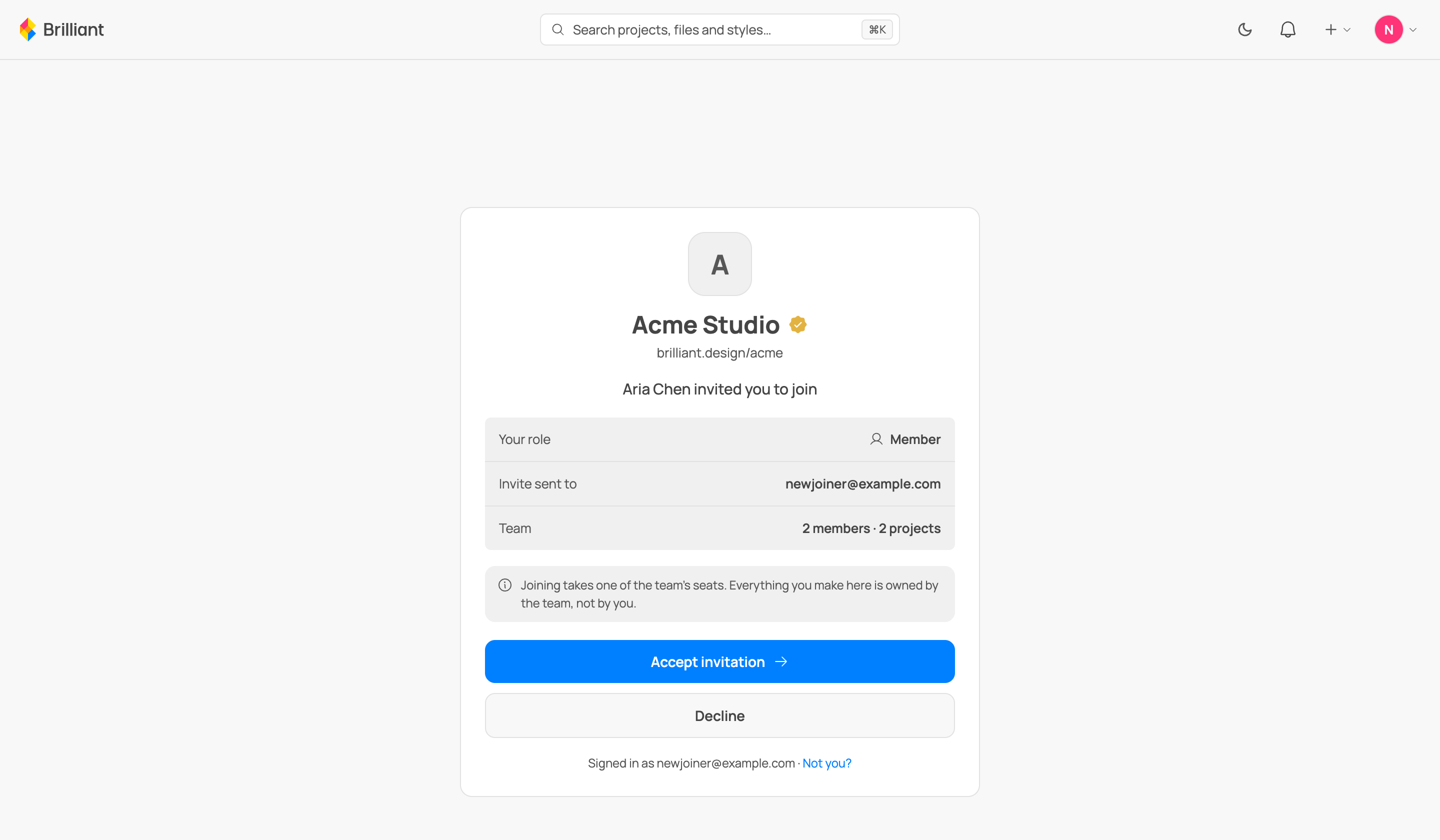
When someone invites you to a team, the invite reaches you two ways: the email link, and a row in your notification bell (it is waiting there even if you sign up after being invited, so a lost email no longer means a lost invite). Either way you land on an invite card that names the team, who invited you, and the role you would hold, with a note that joining takes one of the team's seats and that everything you make in the team is owned by the team. You can Accept or Decline, and declining is a clean, first-class choice: it frees the seat the invite was holding and quietly closes the invitation. Nobody on the team is notified that you declined.
An invite can also already be in a terminal state by the time you open it, and each one gets an honest card rather than a dead end. If you declined it, there is no un-decline; wanting back in means an admin sends a fresh invite. If you are already a member, there is nothing to do. If it expired (a pending invite lapses after 14 days), ask an admin for a new one. An invalid link matches no real invite, and a wrong account invite was addressed to a different account than the one you are signed in as, so you switch accounts and open it again.
Switching between your identities
You can belong to more than one team and still have your personal account. The acting-identity switcher lives on your avatar: open it and a checkmark shows which identity you are currently acting as. Switch to a team and new stars and follows are attributed to the team (where your role allows it); switch back to personal and they are yours again.
When you are acting as a team, the notification bell shows the team's notifications (its new followers, stars and forks on its work), and the avatar menu's team-settings entry opens Settings in the team's lens: one surface that holds the team's Profile, Members, Usage, Notifications, Plan & billing, and a Danger zone. The whole surface is admin-only, so a member who navigates there gets an honest "only admins manage team settings" message with a way back to their personal account. For how Settings works across your personal and team identities, see Settings and account.
Leaving a team
You can leave any team you are a member of. Your seat is freed and the work you made stays with the team. Leaving is done from Settings and account, which lists the teams you can step out of. The one case Brilliant will not let you leave is being the team's only admin: promote someone else first, or transfer the team, so a team is never left without an admin.
A removed member falls back to their own plan or Free with its monthly Brilliant AI; teams get no separate allowance beyond the seats. There is no Enterprise tier.
The danger zone
The team's Danger zone lives in its Settings, and everything in it is admin-only.
Transfer ownership. A team has admins rather than a single owner, so handing it over is a guided two-step move. First you pick a member and make them an admin, which gives them full control of the team, its projects, and its billing. Then, optionally, you step down to member yourself. Stepping down is a real change: as a member you no longer manage the team's settings, which is the honest outcome of handing the team over. If everyone is already an admin, the first step is done and only the step-down remains.
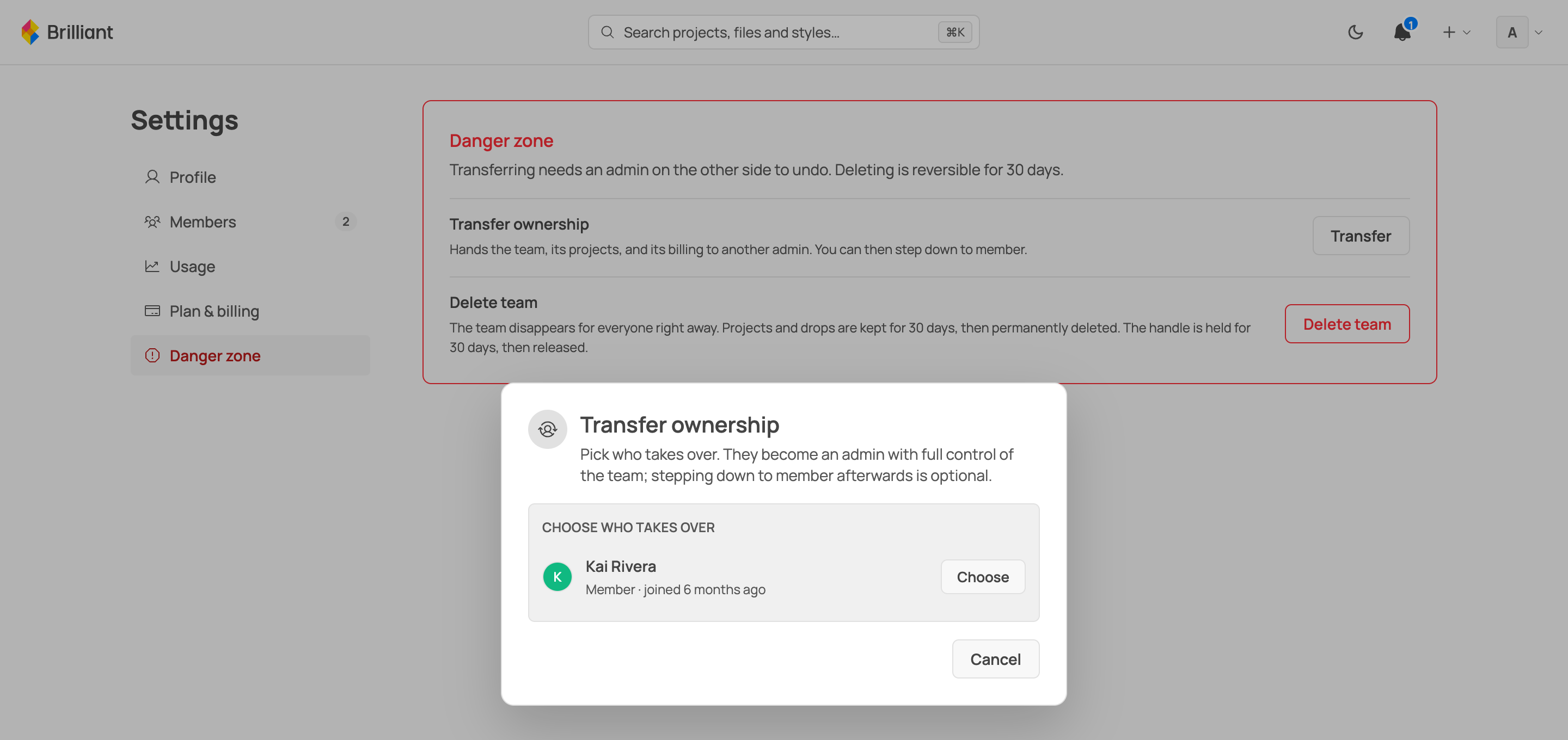
Step down to member. You can drop your own admin role to member whenever you like, as long as you are not the last admin.
Delete the team. Deleting is guarded: you confirm by typing the team's @handle. The moment you confirm, the team disappears for everyone. Its projects and drops are kept for 30 days and then permanently deleted, and its handle is held for 30 days before it is released. Within that 30-day window the team is recoverable; once it passes, nothing comes back.
Transfer a project to a team
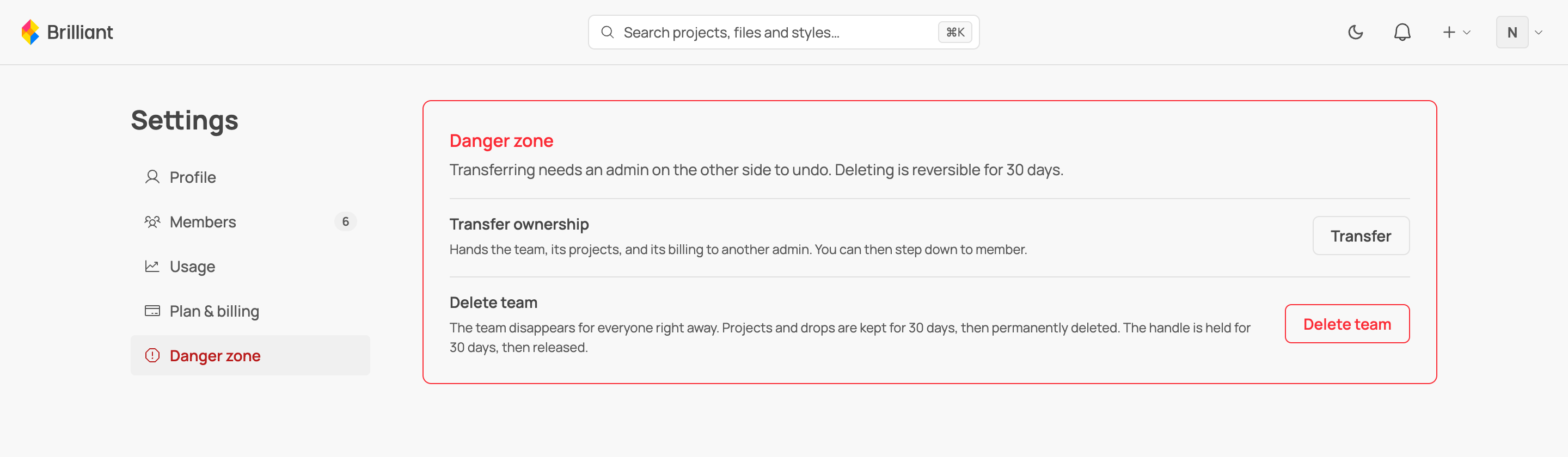
You can hand an individual project to a team from the project's own side, which moves ownership so the project counts against the team's storage and follows the team's plan instead of yours. Only a team you administer can receive a transfer: in the destination picker, teams you admin are selectable, while teams where you are only a member are shown but disabled with the reason spelled out, so you never pick a destination that would be refused. This is the same rule everywhere: establishing team ownership is admin-only.
Creating a team
Create a team from + New team in the account menu, or from Create a team on the pricing page. You give it a name and a handle (with live availability as you type), pick whether it works in public only or also in private, and if you pick private you set the seat count and pay through checkout. A short team handle is a paid feature, the same per-entity rule that handles follow for people.
Next
What each plan costs: Plans and billing.
Names and profile pages: Handles and profiles.
Work together on a project: Collaborate live.