Settings and your account
Everything about your account on the web lives at brilliant.design/settings: your profile, how you sign in, the teams you belong to, and your plan. It is one page, a sidebar of sections beside their content, and every section has a real address of its own (/settings, /settings/account, and so on) so you can link straight to it and the back button works the way you expect. (settings is a reserved word, so this page can never collide with someone's profile.)
Open it while signed out and Brilliant sends you to sign in first, then drops you back on the exact section you were heading for.
You, or a team
The avatar in the top-right corner is not just a picture: it is the identity you are currently acting as. Click it to switch between yourself and any team you belong to, and the whole page re-keys to match. Acting as yourself, /settings shows your personal settings. Acting as a team, the same page shows that team's settings instead.
The choice sticks. It survives a reload and stays put until you switch back, so you are never surprised by which account you are editing. Anyone on a team can switch into it, but changing a team's settings is admin-only (more on that below). Acting as yourself is the plain default: nothing about it changed when teams arrived.
Your personal settings
Profile
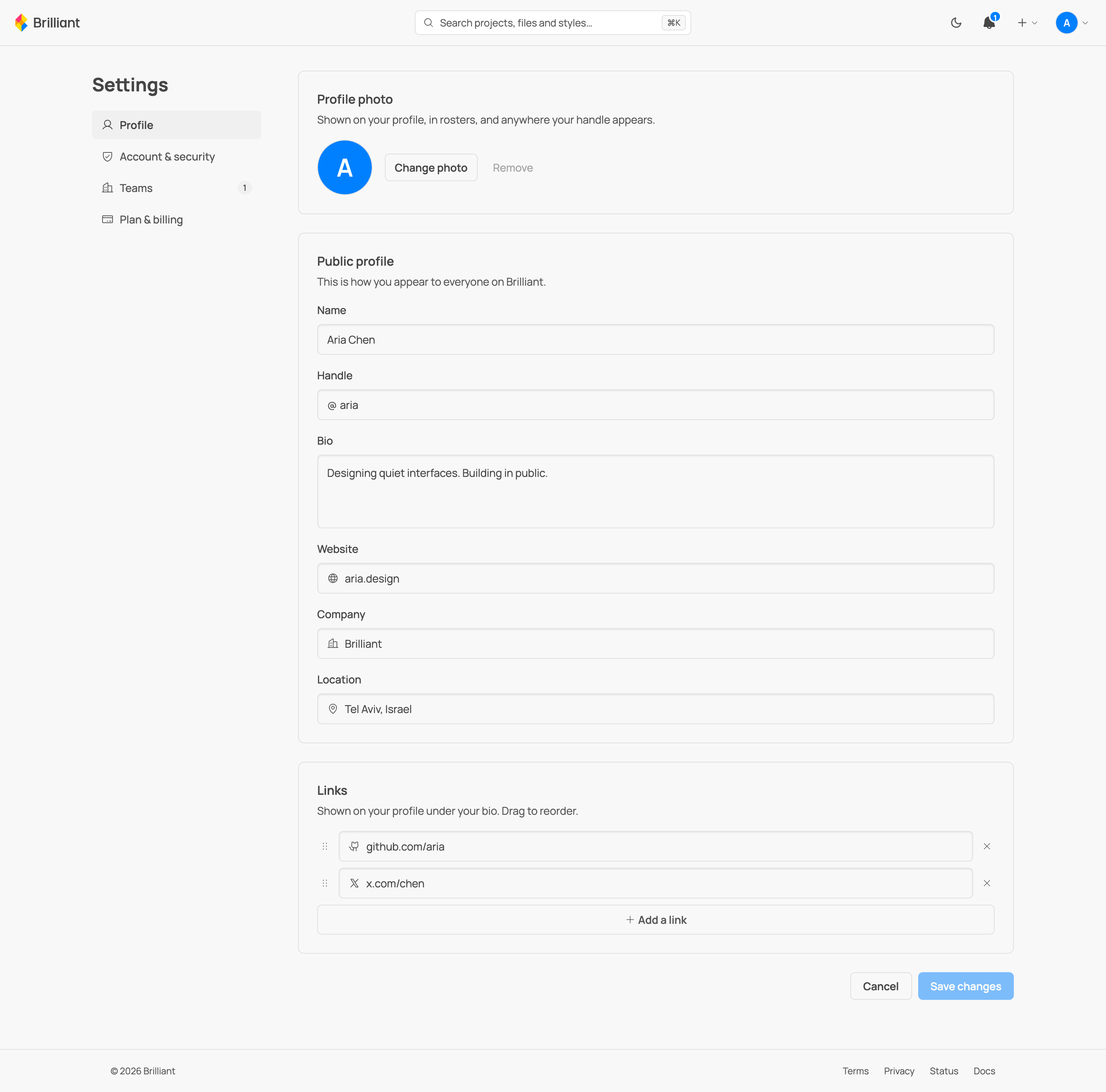
This is the same profile you see on your public page, editable here as a set of cards: your photo, your public details (name, handle, bio, website, company, location), and your links, which you can drag to reorder. It is wired to the exact same save-and-validate machinery as the inline editor on your profile page, so the two can never drift apart. Your handle lives here too, including the short-handle upsell if you reach for one on the Free plan. See Handles and profiles for how handles and short handles work.
Account and security
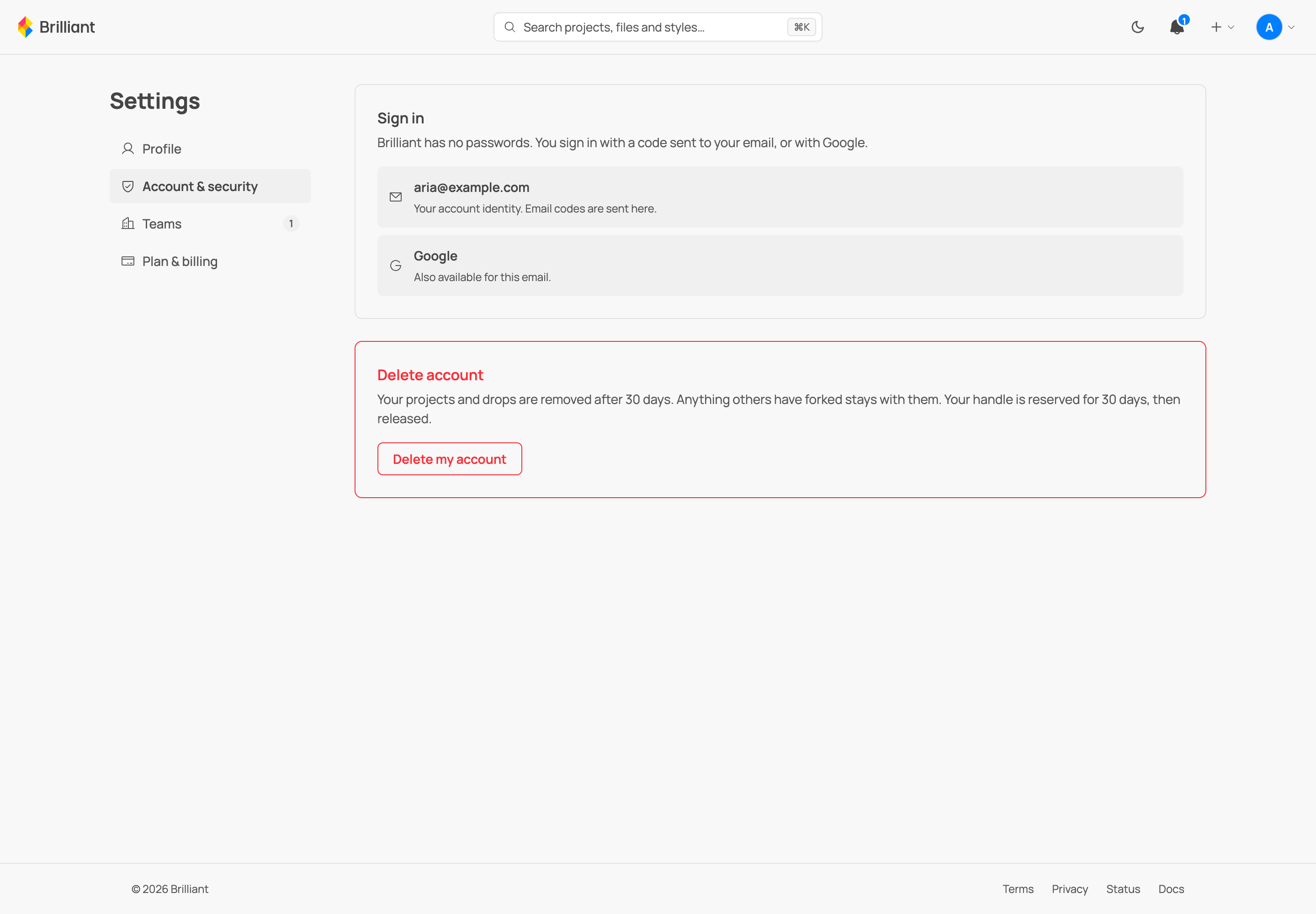
Sign in. Brilliant has no passwords, so this card just shows how you get in: the email that is your account identity, and Google for the same address.
Connected apps. If you have connected Figma, it shows up here with a Disconnect button. Nothing connected means the card simply is not there, rather than a fake empty list.
Delete account. Deleting is deliberately heavy, and honest about what it does. Your projects and drops disappear right away and are permanently deleted after a 30-day window. Forks other people made of your public work stay with them. Your handle is held for 30 days, then released. Stars, follows, and collaborator access are removed, and you are signed out everywhere. The flow walks you through it: an explanation, then typing your handle to confirm (the server re-checks it, so the gate is real), then one more explicit confirm. If you still have an active subscription, or you are the only admin of a team, Brilliant tells you to sort that out first instead of letting the delete go through.
Teams
This section appears once you belong to at least one team, and it is where your own relationship to each team lives (the team's own settings are a separate lens, covered below).
Membership visibility. Each team has a Public / Private switch that only you control. It is private by default, and team admins cannot flip it for you. Public simply shows that membership on your profile.
Leaving a team. Teams where you are a plain member show a Leave button. Leaving frees your seat immediately, and the work you made stays with the team. Admins are not listed here, because a team's last admin cannot walk out and strand it. Handing a team over is part of team settings, covered in Teams.
Notifications
Per-kind switches for what lands in your notification bell: follows, stars, forks, and publishes can each be muted, and the change applies from that moment on. Invites are always delivered; an invitation is never something Brilliant decides you did not want to see.
Plan and billing
Your plan, your subscription, and your invoices. The full billing story (upgrading, seats, intervals, what a paid plan unlocks) is in Plans and billing. Your Brilliant AI usage (a percent used and a reset date) and the plan card where you switch rungs live in the Usage section. Raising a tier applies immediately and is prorated; lowering one takes effect at renewal.
Managing a team
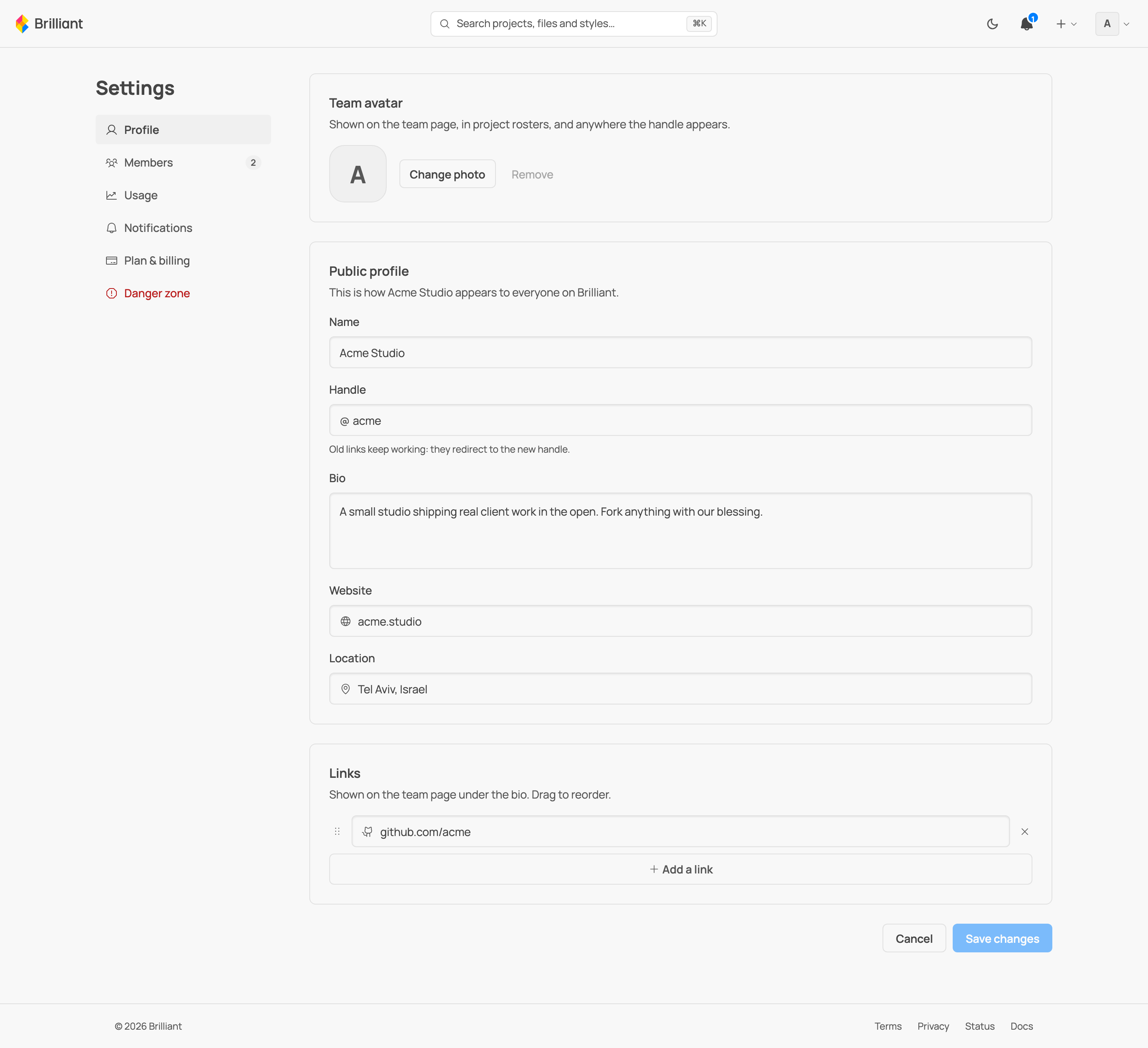
Switch the top-right avatar to a team and /settings becomes that team's settings, in the same shell, with its own sidebar: Profile, Members, Usage, Notifications (the same per-kind mute switches, here governing the team's bell), Plan and billing, and a Danger zone.
This whole surface is for admins. If you are a member of the team but not an admin, opening it shows an honest card ("Only admins manage team settings") with a button to switch back to your personal account, rather than a blank page or an error. You will see the same card if the team context has gone stale, say you were removed since you last switched in.
Profile is the team's public profile: its avatar, name, handle, bio, and links. Renaming the team's handle keeps old links working, they redirect to the new one.
Members, Usage, Plan and billing, and the Danger zone (the roster and invites, pooled storage, seats and billing, and transferring or deleting the team) are the deep team-management surfaces. Rather than repeat them here, see Teams for how a team is run and Plans and billing for the money side.
Next
Set up your handle and profile: Handles and profiles.
Run a team: Teams.
The desktop counterpart: Settings covers the in-app Settings window (Account, Usage, Your own AI, MCP, shortcuts, and more).