Connect Cursor
Wire Cursor's agent into Brilliant so it can build and edit designs on your canvas while you stay in the editor you already live in.
Prerequisites
Cursor installed.
Brilliant open. The MCP server only runs while the app is running.
Setup
Open Settings (
Cmd+,) in Brilliant and pick MCP Connections.Flip the Cursor row on.
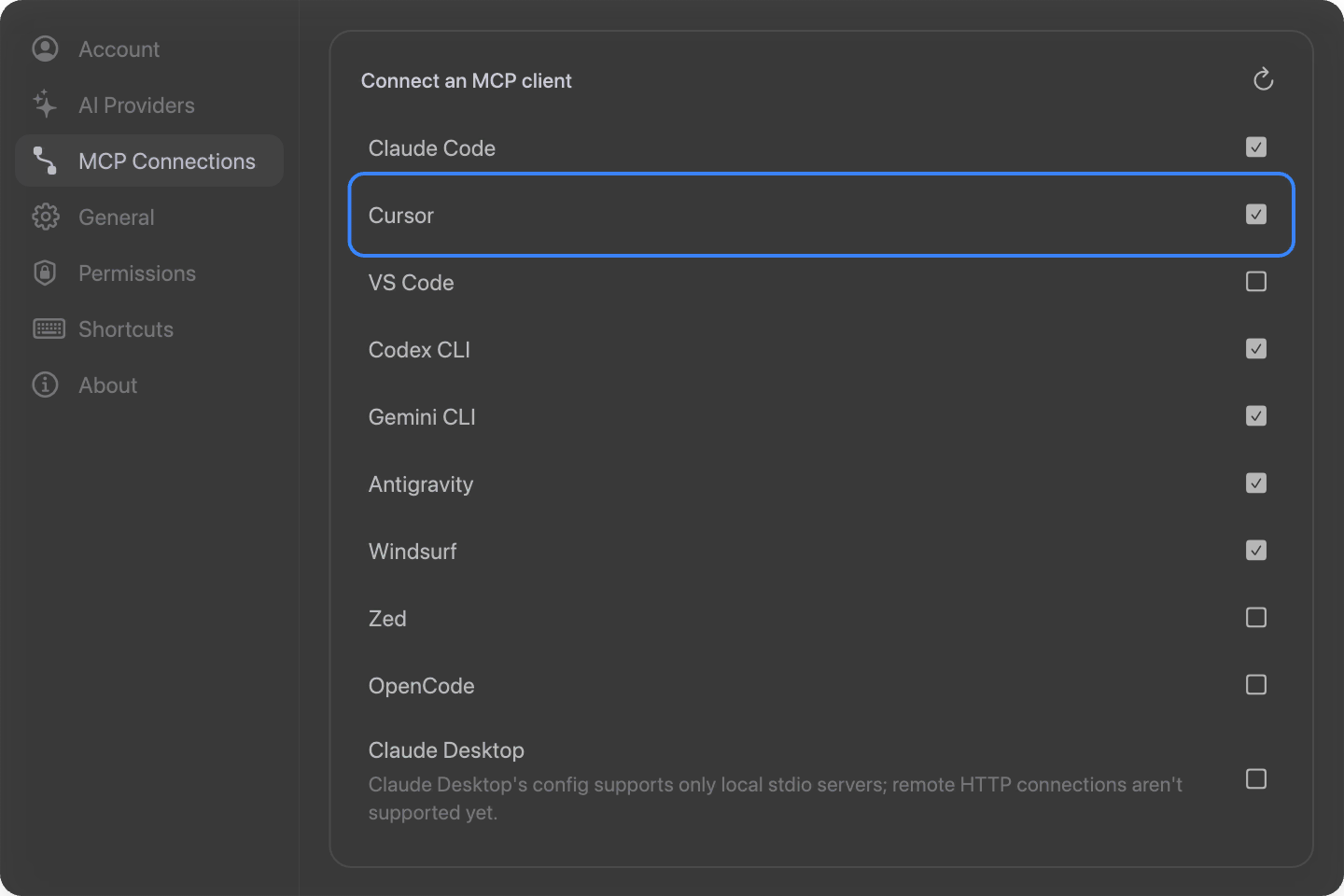
Brilliant writes a brilliant server entry into ~/.cursor/mcp.json, leaving any other servers untouched. Restart Cursor so it loads the new server.
By hand
If you prefer to edit ~/.cursor/mcp.json yourself:
{
  "mcpServers": {
    "brilliant": {
      "url": "http://127.0.0.1:3333/mcp"
    }
  }
}Use 3334 or 3335 if Brilliant fell back to those ports on startup.
Try it
Ask Cursor's agent to design, with Brilliant open:
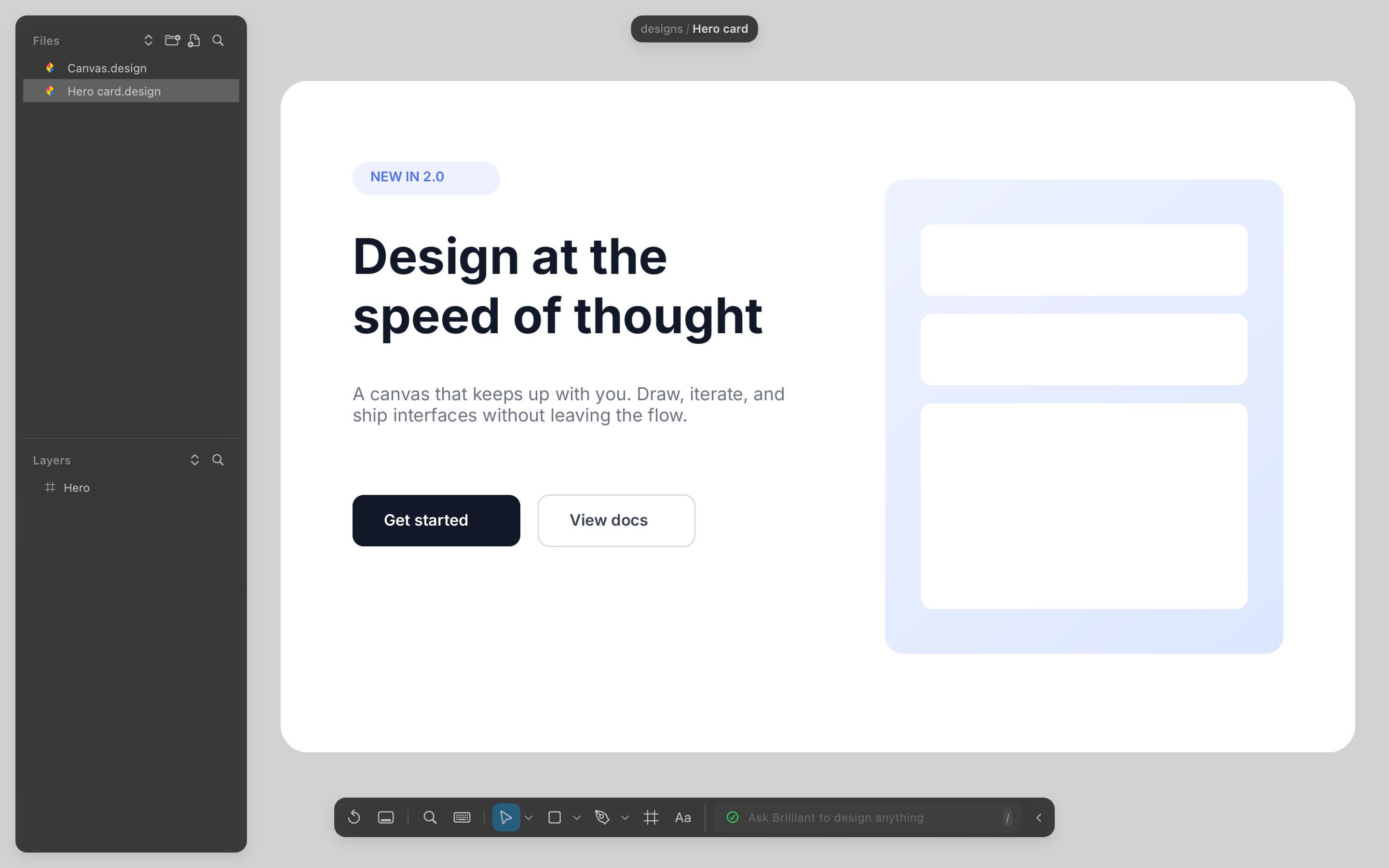
In Brilliant, design a settings page with a sidebar and a form.Read my current selection in Brilliant and generate three color variations of it on a new canvas.Build a mobile onboarding flow in Brilliant, one frame per screen.
Because you are already in a code editor, Cursor is handy for turning a spec or a component in your repo into a matching design in Brilliant.
Troubleshooting
You restarted Cursor and nothing happened. That is expected. Cursor spawns the
brilliantMCP server only when a chat starts, not on launch, so a restart alone shows no change. Open Cursor's AI chat (Cmd+I) and send any message. Thebrillianttools connect on that first call.Cursor doesn't list the
brillianttools. Restart Cursor; it reads MCP servers at launch. Check Cursor's MCP settings panel to confirmbrilliantshows as connected.Calls fail or hang. Brilliant must be open for the endpoint to respond. Launch it and retry.
Port mismatch. If Brilliant is on 3334 or 3335 (because 3333 was taken), re-toggle the Cursor row in Settings to rewrite the current address, then restart Cursor.
The row shows unchecked but the config has a
brilliantentry. The entry points somewhere else. Toggle on to rewrite it to the correct local URL.