Shaders and filters
A fill doesn't have to be a flat color. Brilliant ships two families of procedural fills: shaders, which paint animated patterns like liquid metal and merging blobs, and filters, which reprocess whatever sits beneath them into grain, halftone dots, or a duotone. Both live in the same place as your solid colors and gradients: the fill type dropdown.
Where they live
Shaders and filters are fill types, so you reach them the same way you reach a gradient or an image: open the color picker on a fill or stroke row, then use the type dropdown at the top. The menu is grouped:
Colors: Solid, Linear, Radial, Angular.
Static: Image, Inner Shadow, Inner Glow, Background Blur, Liquid Glass.
Animated and Interactive: the six shaders.
Filters: the seven filter fills.
Pick a type and the picker reflows to show that fill's own controls. Switch types as often as you like without deleting the row.
Because these are fills, they work on fills and on strokes, and on whole text elements (the pattern renders through the glyphs). Individual character runs inside a text block stay solid-color only.
Shader fills
Shaders are animated, procedural patterns. There are six, split into two groups in the picker.
The six shaders
Metaballs (Animated): organic blobs that merge and split. Takes up to five colors.
Liquid Metal (Animated): metallic reflections with chromatic shift and flowing stripes. Two colors.
Iridescent (Animated): folded, oil-slick iridescence with a metallic finish. Three colors.
Liquid Stainless Steel (Animated): flowing chrome with specular highlights. Two colors.
Dithering (Animated): procedural noise rendered as a retro two-tone dither. Two colors.
Reactive Grid (Interactive): an animated grid of nodes and connecting lines. Up to five colors.
A still can't show what a shader actually does. Pick a shader below and set its speed: Slow, Fast, or Frozen. Frozen is literally a speed of 0, the freeze you reach for when a shader should hold still. The fill animates live on the real engine.
The controls you get
Click a shader fill row to expand it. Every shader has:
A Colors section of swatches. Click a swatch to edit it in the picker, and use the plus and minus controls to add or remove colors up to that shader's maximum. Any shader color can be bound to a design token, so it follows your brand and mode.
A Speed slider. Higher is faster; set it to 0 to freeze the pattern in place.
A Transform section that scales, offsets, and rotates the pattern inside the element without moving the element itself.
Then each shader adds its own sliders. The ones you'll actually reach for:
Metaballs: Count, Size.
Liquid Metal: Shape, Softness, Repetition, Shift Red, Shift Blue, Distortion, Contour, Angle.
Iridescent: Shape, Intensity, Folds, Angle, Complexity, Metallic.
Liquid Stainless Steel: Shape, Flow, Roughness, Distortion, Depth, Angle.
Dithering: Shape (the noise pattern: Simplex, Warp, Dots, Wave, Ripple, Swirl, Sphere), Dither (Random, 2x2, 4x4, 8x8), Size.
Reactive Grid: Density, Distortion, Radius.
Liquid Metal, Iridescent, and Liquid Stainless Steel add a Shape dropdown with three options: Element makes the pattern follow the element's outline, Metaballs masks it with an internal blob shape (which adds Ball Count and Ball Size sliders), and None fills the bounds flat.
Presets
Most shaders open with a Presets dropdown of curated color-and-parameter combinations: Metaballs has Lava Lamp, Deep Ocean, Galaxy, and more; Liquid Metal has Mercury, Molten Gold, Copper; Reactive Grid has Neon Circuit, Blueprint, Laser Grid. Pick one as a starting point, then tune it. The reset button next to the dropdown restores the shader's defaults.
Animation
Shaders animate by default. Each shader fill has a play/pause toggle in its expanded view, so you can freeze one fill while others keep moving. To pause or resume every shader on the canvas at once, run Toggle Shader Animations from the command palette. Neither toggle has a default keyboard shortcut.
Filter fills
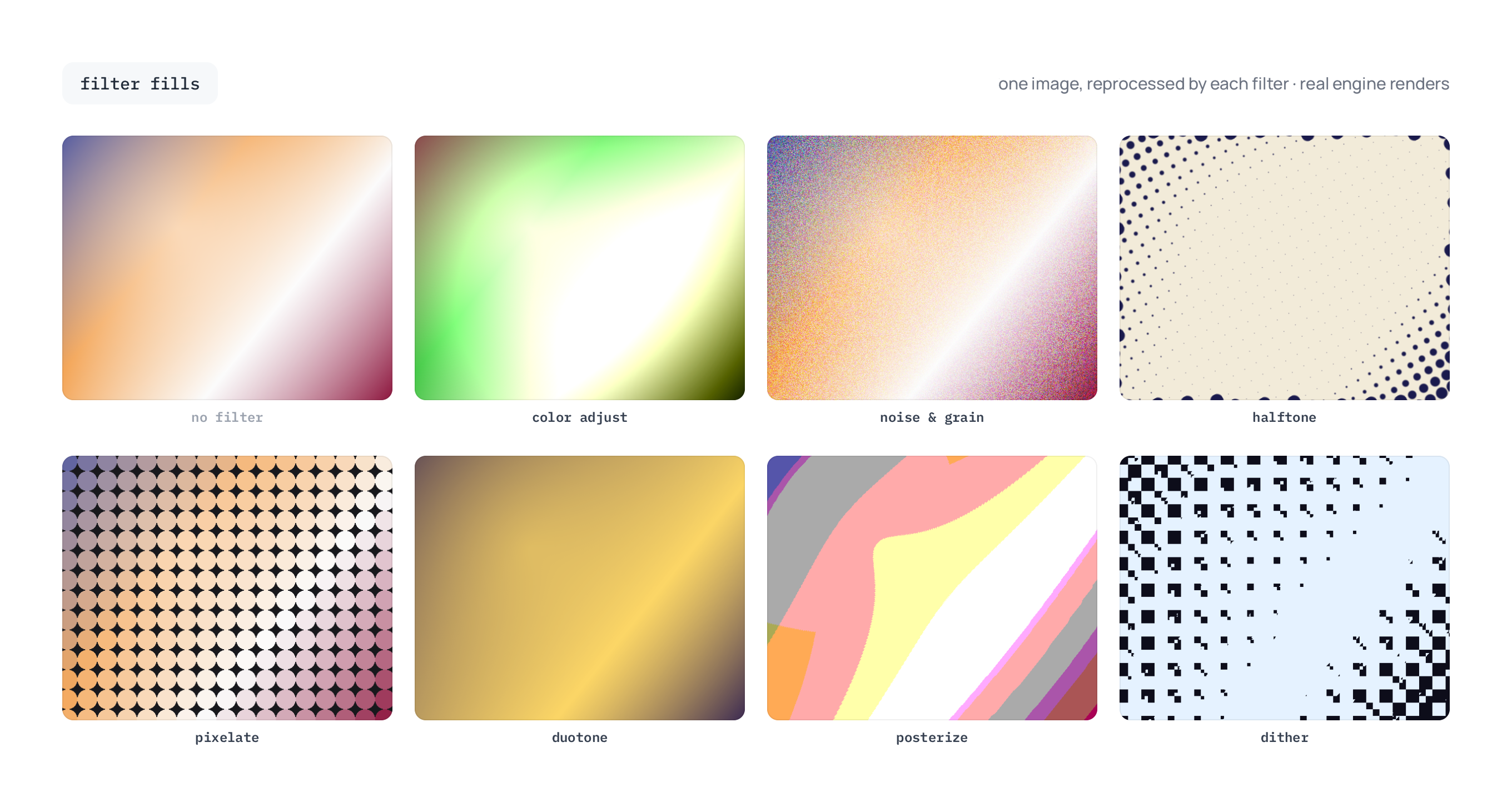
A filter fill doesn't paint its own color: it reprocesses the fills stacked beneath it. Drop a grain filter over a photo and the photo gets grain; drop it over a gradient and the gradient gets grain. There are seven.
The seven filters
Color Adjust: photo-style grading (exposure, contrast, saturation, temperature, vignette, and more). Non-destructive, like an adjustment layer.
Noise / Grain: film-like grain, from subtle texture to heavy static, in color or monochrome.
Halftone: print-style dot patterns, with a CMYK mode that mimics four-color offset printing.
Pixelate: mosaic pixelation with square, hexagonal, diamond, circle, or triangle cells.
Duotone: map the tones beneath it to two colors (add a third for a tritone).
Posterize: collapse smooth gradients into flat bands of color.
Dither: ordered dithering with Bayer and noise patterns for a retro, low-bit look.
Ordering filters in the fill list
A filter restyles the fills beneath it in the fill list, so position matters: to affect the whole element, drag the filter row to the top of the Fills section. Stack two filters and each one only restyles the fills in its own run, from the filter below it up to itself, so they don't double-process the bottom of the stack. Anything sitting above the top filter paints on untouched.
Filters expose their own parameters when expanded, plus a Presets dropdown and a blend mode that sets how the filtered result composites with the content below. Halftone, Duotone, and Dither also carry color swatches, where each swatch's opacity controls how strongly that color tints the result. Hover a preset to preview it live before you commit.
Filters and photos
Filters work on any fill, but they shine on images. Add an image fill, then stack a Duotone or Halftone above it to restyle the photo without touching the original. See Images and crop for working with image fills.
Practical notes
Stable across zoom: grain, dots, and cell sizes are measured in logical pixels, so a pattern looks the same as you zoom in and out.
Exports match the canvas. PNG, JPEG, and WebP capture exactly what you see, with animated shaders rendered at the frame you export. Video export (MP4, MOV) captures the animation across the clip.
Vector export flattens them. SVG and PDF can't express these procedural fills, so any element using a shader or filter is embedded as a raster snapshot. Export to PNG if you need the exact look.
Next
The picker and every fill type: Color and fills.
Strokes, shadows, and glows: Strokes and effects.
Image fills and cropping: Images and crop.