Strokes and effects
Strokes outline your shapes; effects add depth with shadows, glows, and blurs. This page covers both, plus the one distinction worth understanding up front: some "effects" are really fills, and that changes where they sit in the stack.
Strokes
Add a stroke to the selection with ⇧S, or from the Strokes section of the right toolbar. Remove one with ⌥S. An element can carry several strokes at once, stacked in the panel.
Each stroke has:
Weight: the thickness in pixels.
Position: whether the stroke sits inside the shape edge, on center (the default, straddling the edge), or outside it.
Caps: how open path ends are drawn (flat, round, or square), plus arrow and dot end-markers for lines.
Dashes: a dash pattern for dashed and dotted lines. Leave it empty for a solid stroke.
Strokes take the same fills a shape does, so a stroke can be a solid color, a gradient, or an image. See Color and fills. Swap an element's fill and stroke with ⇧X.
Effects versus fill-based effects
Brilliant splits what other tools lump together as "effects" into two groups, and they behave differently.
Effects live in the Effects section of the right toolbar and sit at a fixed place in the stack: shadows and glows always render behind the element, and a blur always wraps the whole element.
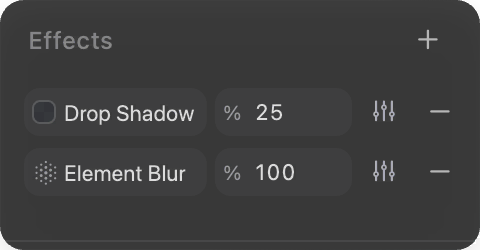
| Effect | What it does | Key defaults |
|---|---|---|
| Drop shadow | Casts a shadow behind the element | Offset 0, 4; blur 8; 25% black |
| Outer glow | Radiates light outward from the edge | Blur 8; 60% white; Screen blend |
| Element blur | Blurs the whole element | Radius 4 |
Drive all three on one card below: deepen the drop shadow, light the outer glow, and blur the floating orb. Each control recompiles the card in place on the real engine.
Fill-based effects are added as fills, not effects, which means they interleave with your other fills in the fill stack. An inner shadow can sit between two solid fills, for instance.
| Fill effect | What it does | Key defaults |
|---|---|---|
| Inner shadow | Casts a shadow inside the edge | Offset 0, 2; blur 4; 50% black |
| Inner glow | Glows inward from the edge | Blur 4; 60% white; Screen blend |
| Background blur | Frosts whatever is behind the element | Radius 8 |
| Liquid Glass | A refractive glass surface | See Color and fills |
Offsets and blur run to 200 pixels; spread runs from -100 to 100. Background blur has no color because it samples the canvas behind the element rather than painting its own.
Blend modes
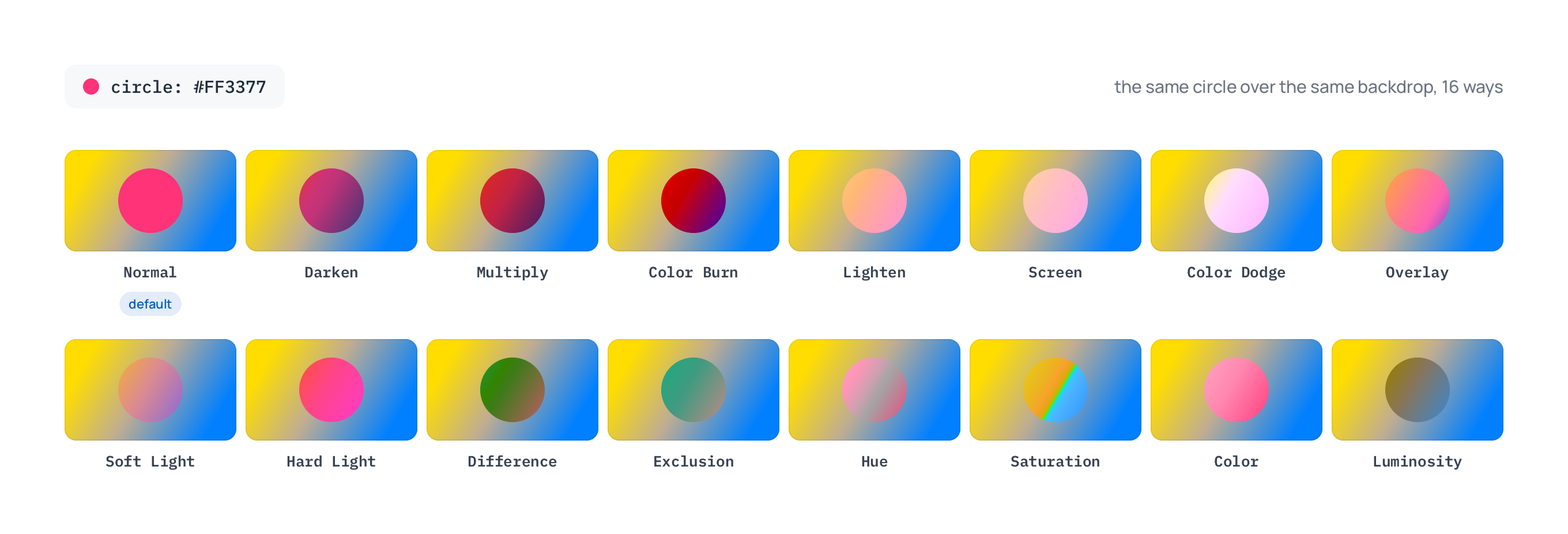
Every fill, stroke, effect, and element itself can take a blend mode, which controls how it mixes with what is underneath. Normal is the default. The full set of 16 runs from Multiply, Screen, and Overlay through Color Dodge, Difference, and the hue/saturation/color/luminosity modes. Set a blend mode from the small mode control next to the item it applies to.
Opacity
Two opacities are in play, and they compound:
Element opacity fades the whole element, contents and all. It lives at the top of the right toolbar.
Fill and stroke opacity fades a single paint, set from that paint's color picker (see Color and fills).
Nudge the selection's opacity from the keyboard: ⌘⇧+ raises it and ⌘⇧- lowers it, and ⌘⇧0 through ⌘⇧9 jump to preset levels.
Next
Fill types in depth: Color and fills.
Style your text: Text.