Canvases and files
A Brilliant workspace is just a folder on disk. Your canvases are files inside it, your folders are real directories, and there is no hidden project database keeping score. This page covers how the file explorer works, how autosave keeps your work safe, and how undo behaves across canvases.
Workspaces are folders
Open a folder with Cmd+O and Brilliant treats it as a workspace: every .bl file inside is a canvas, subfolders are folders, and images live in Assets/ directories. The directory tree is the project tree. Nothing else to manage.
If you have not opened a folder, Brilliant works in scratch mode and autosaves to a private scratch directory, so you never lose an untitled sketch. Open a folder any time to switch into that workspace. Brilliant remembers your last workspace and reopens it on launch, and it tracks your recent workspaces so you can jump back.
Because a canvas is a plain file, its identity is its path within the workspace. Rename or move a canvas and its identity moves with it, and references update to follow.
The file explorer
The file explorer lives in the top half of the left toolbar. Focus it with Cmd+Shift+E. Below it sits the layers explorer for the active canvas; focus that with Cmd+Shift+R. Toggle the whole left toolbar with Cmd+Shift+Left.
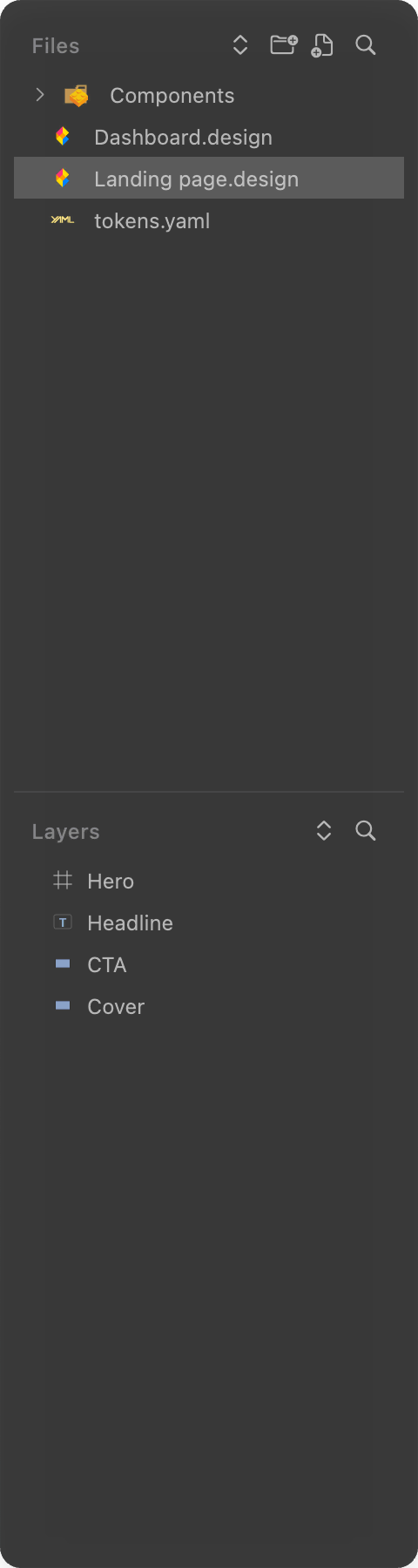
The explorer shows everything in the workspace as a tree: canvases, folders, image assets, and any text or code files. Click an item to select it and, if it is a canvas or a previewable file, switch to it. Cmd+click adds or removes from the selection, Shift+click selects a range, and a selection can span canvases, folders, and assets at once for a batch move or bulk delete.
Type to filter. The Files header has a search toggle so you can filter the tree by name as you type.
Create, rename, reorder, delete
| Action | Shortcut |
|---|---|
| New canvas | Cmd+N |
| New folder | Cmd+Shift+N |
| Duplicate current canvas | Cmd+Ctrl+N |
| Rename active canvas | Alt+Enter |
| Delete active canvas | Cmd+Shift+Delete |
| Toggle expand/collapse all folders | Cmd+Shift+C |
Cmd+N and Cmd+Shift+N create inside the focused folder when the explorer is focused, otherwise at the workspace root. Rename inline by double-clicking a name, or press Alt+Enter on a focused canvas. Drag a canvas or folder onto another folder to move it, or multi-select and drag to move several at once as a single undo step.
Right-click a folder for the full menu: Rename, Delete, Duplicate, Cut, Copy, Paste, New Canvas, New Folder, expand/collapse options, Reveal in Finder, and Copy Relative or Absolute Path.
Color tags. Append a color suffix to a folder or canvas name to tint its icon: .red, .green, .yellow, .orange, .purple, .pink, or .gray. Naming a folder Components.purple gives it a purple icon, and the suffix stays hidden from the displayed name.
Switch between files
| Action | Shortcut |
|---|---|
| Next / previous file | Alt+Right / Alt+Left |
| Previously active canvas | Ctrl+Alt+Left |
| Reveal active canvas in explorer | Cmd+Shift+K |
| Search and switch canvas | Cmd+P |
| Global search (canvases, images, text) | Cmd+K |
| Search layers in the active canvas | Cmd+L |
Switching canvases is instant and is not an undoable action.
The top toolbar shows where you are
Centered at the top, the breadcrumb shows the active file's location as Workspace / Folder / Canvas. Double-click the canvas-name segment to rename it inline, and hover the breadcrumb to reveal a button that copies the file's absolute path.
The canvas name also doubles as your save indicator: it dims while there are unsaved changes and brightens once saved. There is no separate save chip or spinner.
Assets
Images live in Assets/ folders next to your canvases, one per folder level. Importing an image drops it into the appropriate Assets/ directory, and dragging an image from Finder into the explorer imports it too.
Right-click an asset for Rename (which updates every reference to it across all canvases automatically), Delete (which warns first if the image is in use, then moves it to the trash, recoverable via undo), Reveal in Finder, and Copy Filename. Run Clean Up Unused Assets from the command palette to sweep out images no canvas references.
Autosave, no save button
Brilliant saves continuously. There is no Cmd+S and you never save by hand for normal work. Shortly after you stop editing, the active canvas is written in the background so saves never interrupt you. On quit or when you switch workspaces, every unsaved canvas is flushed first.
Each save captures the full canvas: elements and hierarchy, fills, strokes, effects, components, design-system bindings, ruler guides, zoom, pan, and background settings. Selection and undo history are session-only and are not written to disk.
If a .bl file ever fails to load (corrupt file, schema mismatch), Brilliant blocks saves on that canvas so it can never overwrite good data with an empty state.
Undo is per canvas
Every canvas keeps its own independent undo history. Cmd+Z on a canvas undoes that canvas's last action, and switching canvases never clears it.
When the file explorer is focused, Cmd+Z routes to a separate explorer undo stack that covers file-tree operations: create, rename, delete, move, and reorder of canvases and folders. Deletes are never destructive, they move the file into the workspace trash and register an undo that restores it. To undo a file-tree change, focus the explorer with Cmd+Shift+E first, then Cmd+Z.
Version control with Git
.bl files are plain, deterministic Blueprint text: one element per line, stable ordering, inline coordinates, hex colors. That means clean, human-readable diffs. Open your workspace folder in Git, and you can branch designs, review them in pull requests, and git blame a stray color change exactly as you would with code. Include the .brilliant/ folder to share consistent workspace settings.
Older canvases saved in Brilliant's earlier YAML format still open. Brilliant migrates each one to Blueprint the next time you save it and archives the original alongside it, so nothing is lost.
For local work there is no version-history panel inside Brilliant: undo is per canvas and session-only, so for persistent history use Git or an OS backup like Time Machine. Once you publish a project to brilliant.design, that project also gets named checkpoints and a full version history, covered in Publish a project.
New here?
New to Brilliant and want something to poke at? On first launch the guided tour walks you through the essentials, and the starter prompts in the AI chat build something real on your canvas that you can pull apart. See First steps.
Next
Bring designs in and ship them out: Import and export.
Tune the app: Settings.
Reuse elements across canvases: Components.