Text
Text in Brilliant is fully editable type with real typographic controls and per-character styling. This page covers creating it, the sizing modes, the typography panel, and how to restyle just part of a string.
Creating text
Grab the Text tool with T, then click anywhere on the canvas to drop a cursor and start typing. New text starts at 24 pixels in the system font and grows to fit as you type. Press Esc or click away when you are done.
To edit existing text, double-click it.
Sizing modes
How a text box resizes as its content changes is set by its sizing mode, in the right toolbar:
Auto size: the box hugs the text on both axes. The text never wraps; the box just grows.
Auto height: the width is fixed, so text wraps, and the box grows taller to fit.
Auto width: the height is fixed and the box grows wider as you type, without wrapping.
Fixed size: both dimensions are locked, and text is clipped if it overflows.
Dragging a side handle on the canvas locks that axis, so resizing a hugging box by its side switches it to auto height.
Sizing is really about how the box reacts as the content changes, which a fixed picture can't show. Pick a mode below and flip the content between short and long: the same box hugs, wraps, grows wide, or clips, live on the real engine.
The typography panel
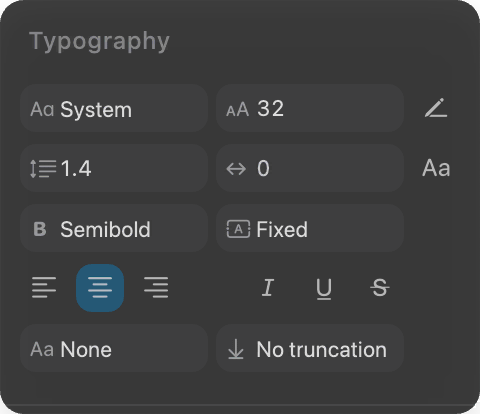
With a text element selected, the right toolbar shows the full typography section:
Font family and weight. The weight dropdown lists only the weights the chosen font actually ships.
Size, line height, and letter spacing.
Bold, italic, underline, and strikethrough.
Alignment: left, center, or right.
Text case, max lines (truncate with an ellipsis past a line count), and OpenType features for fonts that offer them.
Common styling has keyboard shortcuts: bold ⌘B, italic ⌘I, underline ⌘U. Align with ⌘⌥L, ⌘⌥T, and ⌘⌥R for left, center, and right. Bump the size with ⇧= and -.
Styling part of a string
You do not have to style a whole text element the same way. While editing, select a range of characters and change the font, weight, size, color, italic, underline, strikethrough, or letter spacing on just that range. Each override sticks to those characters, so one text element can hold a bold word, a colored link, and a larger first letter, all at once.
Fonts
Open the font picker with ⌘⇧F. It searches a large curated library of web fonts plus the fonts installed on your machine. Start typing to filter, and the preview updates as you go.
Outlining text to vectors
When you need the letterforms as editable shapes (to distort them, cut them out, or guarantee they render identically anywhere), convert text to vectors:
Outline Text (⌘⌃O) turns the selection into a group of vector paths, one per glyph.
Flatten (⌘Enter) merges those glyphs into a single path.
This is a one-way trip: outlined text is no longer editable as type, so keep an original if you might revise the wording. Outlining is available on macOS and Windows.
Next
Bend the outlines: Vectors.
Color your type: Color and fills.