Components
A component is a design element you build once and reuse everywhere. You edit the master, and every instance of it updates to match, except for the bits you deliberately override per instance. This page covers making components, how syncing and overrides behave, component sets with variants, and the handful of Figma habits that do not carry over.
If you are coming from Figma, most of this will feel familiar. Skip to What Brilliant does not have for the differences.
Masters and instances
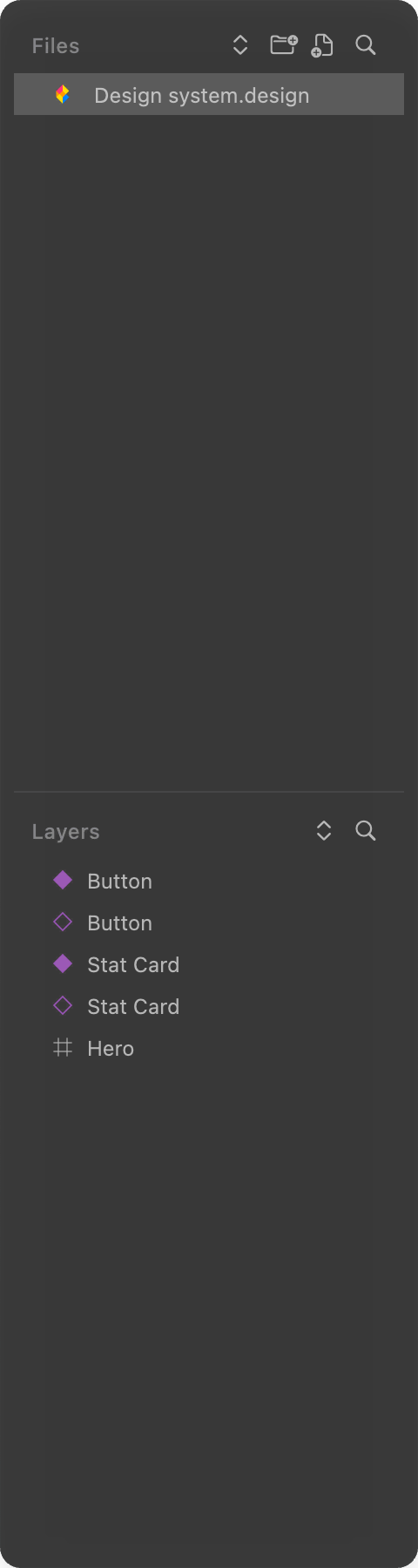
A master is the source of truth. It is a normal frame on the canvas, marked with a purple label and a filled diamond icon in the layers panel.
An instance is a linked copy of a master. It inherits everything from the master until you override a property on it.
There is no separate Components panel or Components page. Masters live as regular frames on whatever canvas you put them on. A common convention is to keep them together on one dedicated canvas.
Create a master
Select one or more elements on the canvas.
Press
Cmd+Alt+K, or right-click and choose Component then Create Component, or run Create Component from the command palette.The selection becomes a master. Its frame label and selection chrome turn purple, and a filled diamond marks it in the layers panel.
What gets wrapped depends on your selection:
A single plain frame converts in place, with no extra wrapper.
A single non-frame element, or several elements, get wrapped in a new frame sized to their combined bounds, and that frame becomes the master.
A selection spanning multiple parents produces one component per parent group.
You cannot turn a loose child of someone else's instance into a component. Select elements outside any instance, or select the instance root itself (that one is allowed).
Create an instance
Select a master.
Run Create Instance from the command palette, or right-click and choose Component then Create Instance.
A linked copy appears, offset slightly down and to the right, and is selected for you.
Duplicating or copy-pasting a master also makes an instance, not a second master. So Cmd+D on a master gives you an instance linked back to it. Duplicating an instance gives you another instance of the same master.
In the layers panel, a filled diamond is a master and a diamond outline is an instance.
Overrides and syncing
Change any property on an instance (its text, a fill color, its size) and Brilliant records that change as an override. From then on, edits to the master stop touching that one property on that one instance. Your override wins and survives every future sync. Nothing to mark or confirm, it just happens.
Everything else keeps flowing from the master. When you edit a master, every instance updates except where you have overridden:
Non-overridden properties are copied down to each instance.
Children you add to the master appear in every instance. Children you remove disappear from every instance. Reordering carries over too.
Overridden properties are left alone.
Almost everything participates in sync: fills, strokes, text content and styling, rotation, flips, geometry, corner radii, layout and frame properties, sizing mode, effects, opacity, and element-level token bindings.
Edit the master below (its accent, corner radius, or button label) and watch all three cards move together. This shows the master-edit half of the story; per-instance overrides, where one instance keeps its own value while the master changes, live in the editor.
A few things stay independent per instance and never sync from the master:
Blend mode. Set it per instance. Changing it on an instance is not even treated as an override.
Crop, shadow token reference, and the element-level opacity token. Managed per element.
The instance's own name. Renaming a master frame does not rename its instances. Renaming a master's child does propagate to the matching child in each instance.
Instances keep the master's structure
The shape of an instance belongs to its master, so Brilliant blocks structural drift:
You cannot drag a new element into an instance. The drop is rejected.
You cannot drag an element out of an instance to reparent it.
Adding, removing, or reordering children happens on the master and propagates down.
The one exception is a slot: a child whose subtree the instance fully owns, so sync skips it and you can drop freely inside it. Slots are designated through blueprint authoring; there is no by-hand control to mark an element as a slot.
If you need an instance to fully break away, detach it first.
Component sets, variants, and properties
A component set is Brilliant's take on Figma variants. Instead of one master, a set groups several variants of the same component (a button's default, hover, and pressed looks, say) along named properties. Each property is an axis with a list of values, and every combination of values maps to one variant. An instance of a set carries a configuration, one value per property, and shows the matching variant. To change an instance's look you flip its property dropdowns rather than swapping in a different element.
Create a set
Select two or more frames, each of which becomes one variant.
Right-click and choose Create Component Set, or run it from the command palette.
The frames combine into a set, one variant each, inside a dashed boundary.
You can also grow a single component into a set later with Add Variant.
The Component inspector section
Select a set, a variant, or an instance and a Component section appears in the right toolbar. It has three modes:
Set selected: an Add Property button (name the axis; Size, State, Type, and Variant are suggested) and an Add Variant button. Each property shows its name and a button to remove it.
Variant selected: one dropdown per property sets that variant's value, its coordinate in the set. If two variants end up with the same combination, a warning appears so you can disambiguate them.
Instance selected: one dropdown per property picks the configuration, flipping the instance to a different variant. It re-renders immediately. Nested instances surface their own dropdowns, indented beneath the parent's.
Use a set
Create an instance of the set (Create Instance, or duplicate an existing instance).
Select the instance.
Flip the property dropdowns in the Component section to choose its variant.
That is the whole workflow: one instance, reconfigured by picking values, no detaching or swapping.
Detach, reset, and push
Detach breaks the link to the master. Select an instance and press
Cmd+Alt+B, or use Detach Instance from the command palette or right-click menu. The frame becomes a plain frame, content preserved, and future master edits no longer reach it.Reset overrides restores an instance to match its master. Run Reset Component Instance Overrides. Every override clears and the instance re-syncs fresh from the master, children included.
Push overrides to master takes the overrides you made on an instance and applies them back to the master, so they become the new default and every other instance syncs to them. Run Push Overrides to Master. This only works when the master is on the same canvas as the instance.
Ungrouping cleans up links first: ungrouping a master detaches all its instances, then ungroups; ungrouping an instance detaches it, then ungroups.
Go to the master
With an instance selected, run Go to Master Component (command palette or right-click). The selection jumps to the master. This works when the master is on the canvas you are currently viewing.
Cross-canvas instances
A master can live on a different canvas than its instances. Keep your masters on one canvas and use instances throughout the rest of the project.
An instance remembers which canvas its master lives on. When you open the instance's canvas, Brilliant finds the master and syncs to its latest values.
Editing a master updates instances on every canvas you currently have open. Instances on canvases you have not opened pick up the changes the next time you open them.
Push Overrides to Master and Go to Master Component only work when the master is on the canvas you are viewing. Switch to the master's canvas first.
Pasting a master into a different canvas creates an instance pointing back to the original. The master is not duplicated.
Two things worth knowing: deleting a master does not immediately detach instances on canvases you do not have open (those clean up next time you open them), and if a canvas full of cross-canvas instances is the first thing you open in a session, its instances may not find their master yet. To be safe, open the master's canvas first.
Shortcuts
| Action | Shortcut |
|---|---|
| Create Component | Cmd+Alt+K |
| Detach Instance | Cmd+Alt+B |
| Create Instance | Command palette or right-click |
| Create Component Set | Command palette or right-click |
| Reset Component Instance Overrides | Command palette or right-click |
| Go to Master Component | Command palette or right-click |
| Push Overrides to Master | Command palette or right-click |
Only Create Component and Detach Instance have default keybindings. The rest are reachable from the command palette or the Component right-click submenu, and you can bind them yourself in the Shortcuts panel.
What Brilliant does not have
Brilliant components are a master/instance system with overrides, slots, component sets, and cross-canvas references. If you are used to Figma, these concepts are not here:
Swap instance. There is no swap-instance command. To point an instance at a different master, detach it and make a fresh instance of the other master. Within a set, you do not swap, you flip the property dropdowns to pick a variant.
A Components panel or page. No left-toolbar Components panel, no dedicated Components canvas type. Masters are regular frames; keep them on a canvas by convention. A contextual Component section does appear in the right toolbar when a component, set, variant, or instance is selected.
Per-property override badges. Nothing flags which individual property you overrode on an instance. The visible component chrome is the purple frame label and the diamond icon.
Component descriptions or metadata, publishing or library export, a master-versus-instance diff view, and exposing nested overrides as instance-level properties.
Next
Reuse across canvases: Canvases and files.
Bind component colors to tokens: Design system.
Bring components from Figma: Import from Figma.