Use with AI agents
Brilliant runs a local MCP server the whole time the app is open, so any coding agent that speaks MCP can design on your canvas: create elements, edit them, run commands, and export, all as native editable objects you can keep working by hand. This page explains the two ways to connect an agent and points you at the exact setup for your tool.
Two ways to work with an agent
There are two integration styles, and most designers end up using both:
The built-in chat. Brilliant ships with an AI chat docked in the bottom toolbar. It reads your selection, streams edits onto the canvas, and gives you per-chat undo, color and position pickers, and progressive previews. It runs on Brilliant AI out of the box, or on your own AI if you bring a key or your Claude Code login. Start with Built-in AI.
Your own external agent, over MCP. Keep working in Claude Code, Cursor, Codex, or another editor and let it drive Brilliant from there. You point the tool at Brilliant's local endpoint once, then ask it to design. This is the rest of this section.
Same canvas, same undo stack, either way. You can draw by hand while an agent runs and nothing collides.
Driving Brilliant from an external agent over MCP is unlimited on every plan, Free included, except an image an agent generates on Brilliant AI, which draws on your Brilliant AI usage and is capped like the chat's. The built-in chat's daily message cap does not apply to it. More in Plans and billing.
MCP in one paragraph
MCP (Model Context Protocol) is a shared language that lets an AI tool call another app's features. Brilliant exposes its canvas as a small set of MCP tools and serves them over a local web address on your own machine. Any MCP-aware editor you connect can then create and edit designs in Brilliant by calling those tools. Nothing leaves your computer to make this work, and Brilliant has to be open for a connected tool to reach it.
The endpoint
http://127.0.0.1:3333/mcpLocalhost only, no authentication, running right now if Brilliant is open. If port 3333 is busy, Brilliant falls back to 3334, then 3335, so a second instance still gets its own address. Whenever you set a tool up through Brilliant's own settings, it writes the correct current address for you.
On the web (brilliant.design)
You do not need the desktop app to drive Brilliant from an agent. A live brilliant.design tab works too, through a tiny local helper you install once:
claude mcp add brilliant -- npx -y @brilliant-hq/mcpThat one command is universal: it is the same @brilliant-hq/mcp package for every MCP client, and it covers both the web tab and the desktop app. The helper runs on your own machine and bridges your agent to the tab over loopback (127.0.0.1). No MCP or design data ever touches Brilliant's servers: the whole exchange is agent to helper to tab, all on localhost.
Brilliant walks you through it in the app. Open the AI chat and pick Drive Brilliant via MCP, or go to Settings → MCP Connections: either one hands you the exact command to copy, then waits and connects the moment your agent starts. Once it is connected, ask it to design and the edits land on the canvas you are looking at.
A couple of browser notes:
Chrome and Edge show a one-time "local network" permission the first time an agent connects (Chromium 147 and later). Grant it once and it sticks for brilliant.design. Firefox needs no prompt.
Safari is not supported yet. Its rules block the local connection with no way to opt in, so use Chrome, Edge, or Firefox for the web app, or the desktop app instead.
What an agent can do
Everything the built-in chat can do:
Create designs as native editable elements: full UIs, pages, dashboards, illustrations, diagrams, and wireframes, via plain HTML/CSS or Brilliant's Blueprint format.
Inspect and edit any canvas: read structure, change properties, reparent, rename, delete, and reorder.
Search across canvases by name, text, type, color, or component.
Run canvas commands the same way your keyboard does (align, group, auto layout, corner radius, create components, and more), each with full undo.
Export selected elements to PNG, JPEG, WebP, SVG, PDF, HTML (page, document, or flex layout), React, MP4, MOV, or Replay.
Generate images (raster) and vectors, and apply them to the canvas.
Load design knowledge on demand: tokens, typography, effects, composition patterns.
Pick your tool
Setup is a one-time step per tool. If the tool is in Brilliant's built-in list, it is a single toggle; otherwise you paste one line of config. Each page below has the exact steps, prompts to try, and troubleshooting.
| Tool | Setup | Page |
|---|---|---|
| Claude Code | Automatic once you open the chat, or one toggle | Claude Code |
| Claude Desktop | Manual (a small bridge command) | Claude Desktop |
| Cursor | One toggle | Cursor |
| Codex CLI | Automatic on launch, or one toggle | Codex |
| GitHub Copilot (VS Code) | One toggle | Copilot |
| Windsurf | One toggle | Windsurf |
| Antigravity | One toggle | Antigravity |
The in-app list under Settings → MCP Connections is the live source of truth for what Brilliant can connect to, and it grows over time. It also covers tools without a dedicated page here (Gemini CLI, Zed, OpenCode); the step is identical, just flip that tool's toggle.
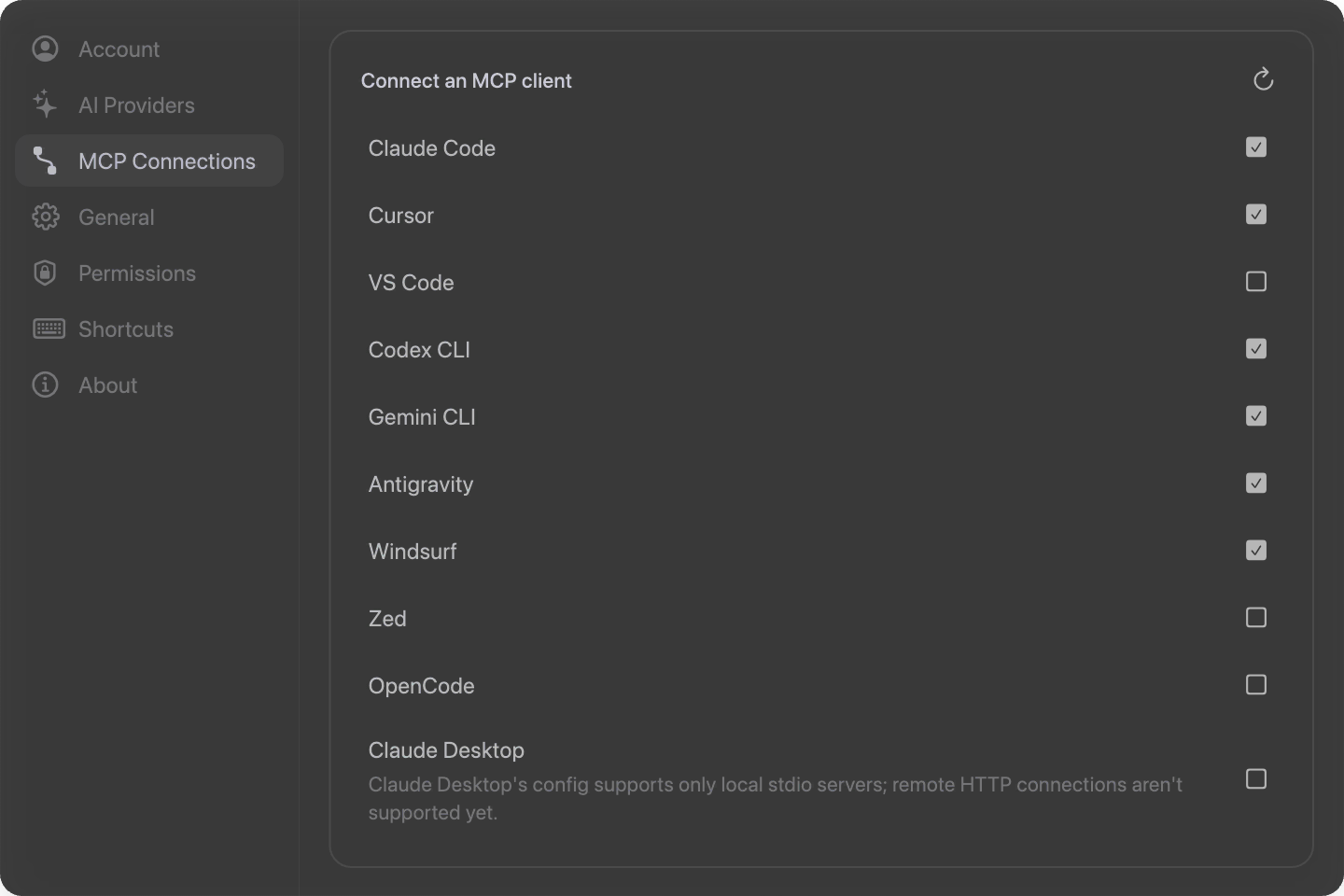
The shortest path
If you use Claude Code, the fastest setup is no setup: open the built-in chat in Brilliant once and it registers the endpoint with claude for you. From then on, tell your agent to work in Brilliant.
"Design a pricing section in Brilliant."
"Add a hero to the dashboard canvas."
"Update the card component to match the new brand colors."
Brilliant hands the agent a short overview on its first call and serves deeper knowledge on demand, so you do not have to prompt-engineer it.
Next
Set up your editor: pick your tool from the table above.
Prefer the in-app chat? Built-in AI covers the docked chat, providers, and everything it can do.