How to turn a Figma file into an agent-editable design

How to import a Figma file and hand it to an agent
Install the Brilliant plugin in Figma
Get Brilliant from the Figma Community and click Open In Figma. You do this once.
Figma Community
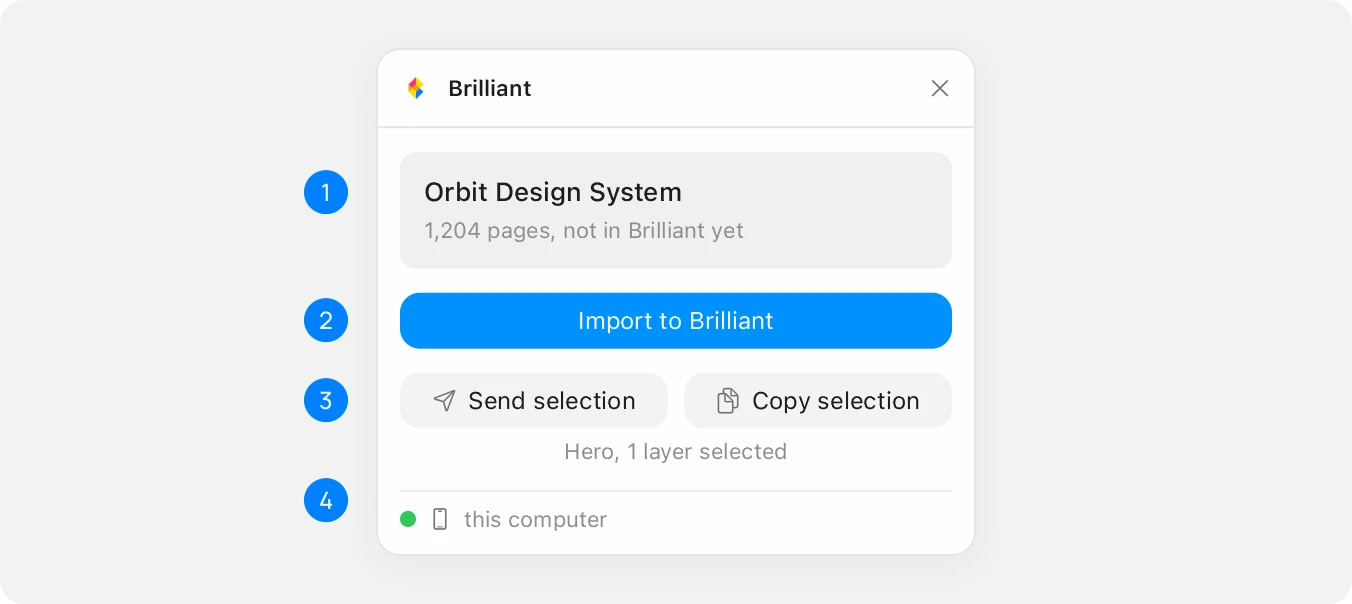
https://www.figma.com/community/plugin/1611333431302009837Run the plugin and press Import to Brilliant
Open the file in Figma and choose Plugins, Brilliant. With the desktop app running, Brilliant comes to the front with the import open in its own tab. From Figma in a browser, the plugin offers Import in the browser instead.
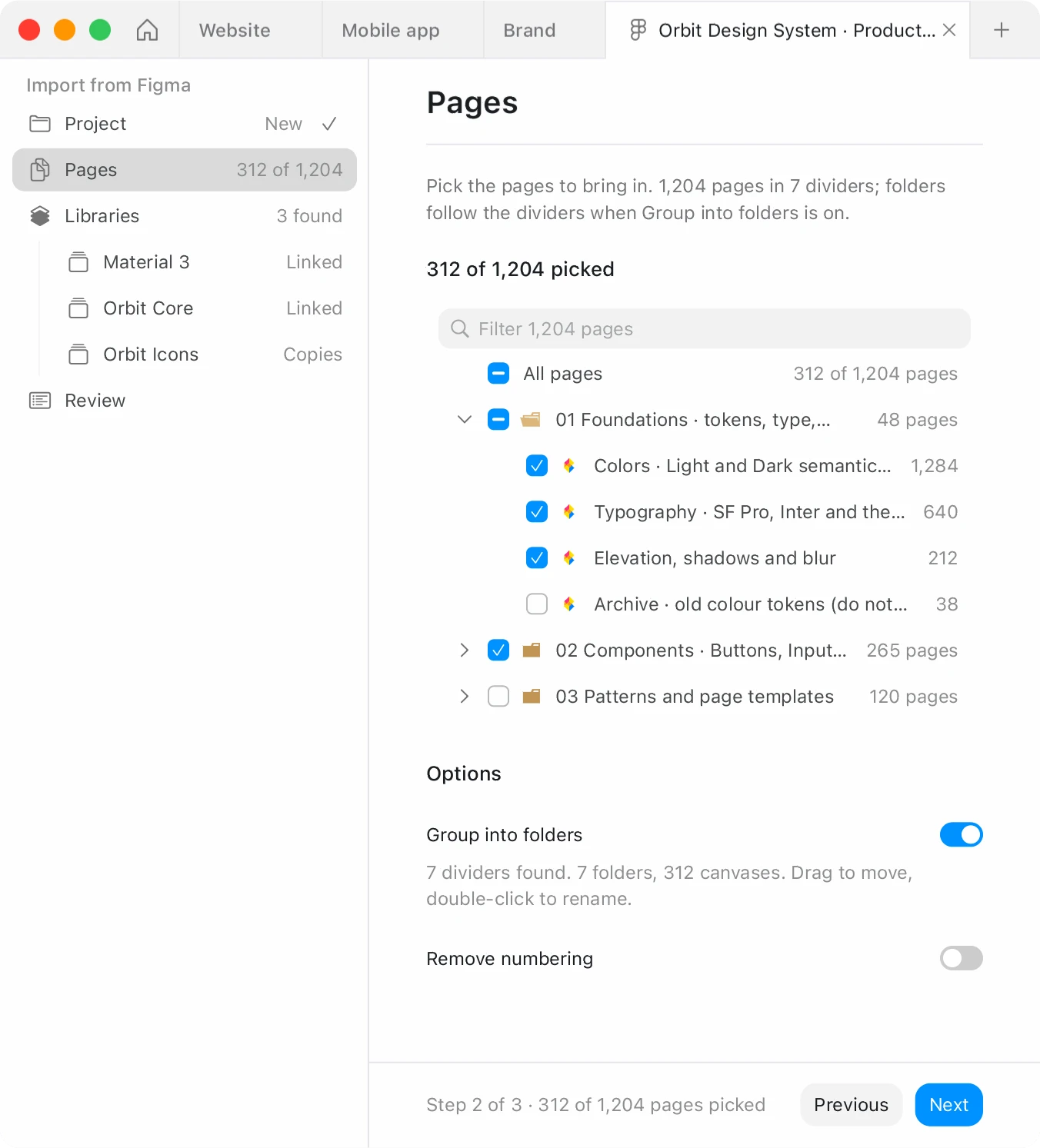
Choose the project, the pages and the libraries
Pick a new project or update one Brilliant already holds, uncheck the pages you don't need, and decide for each team library whether it stays connected, becomes a library in your account, or arrives as local copies.
Press Import and keep the plugin open
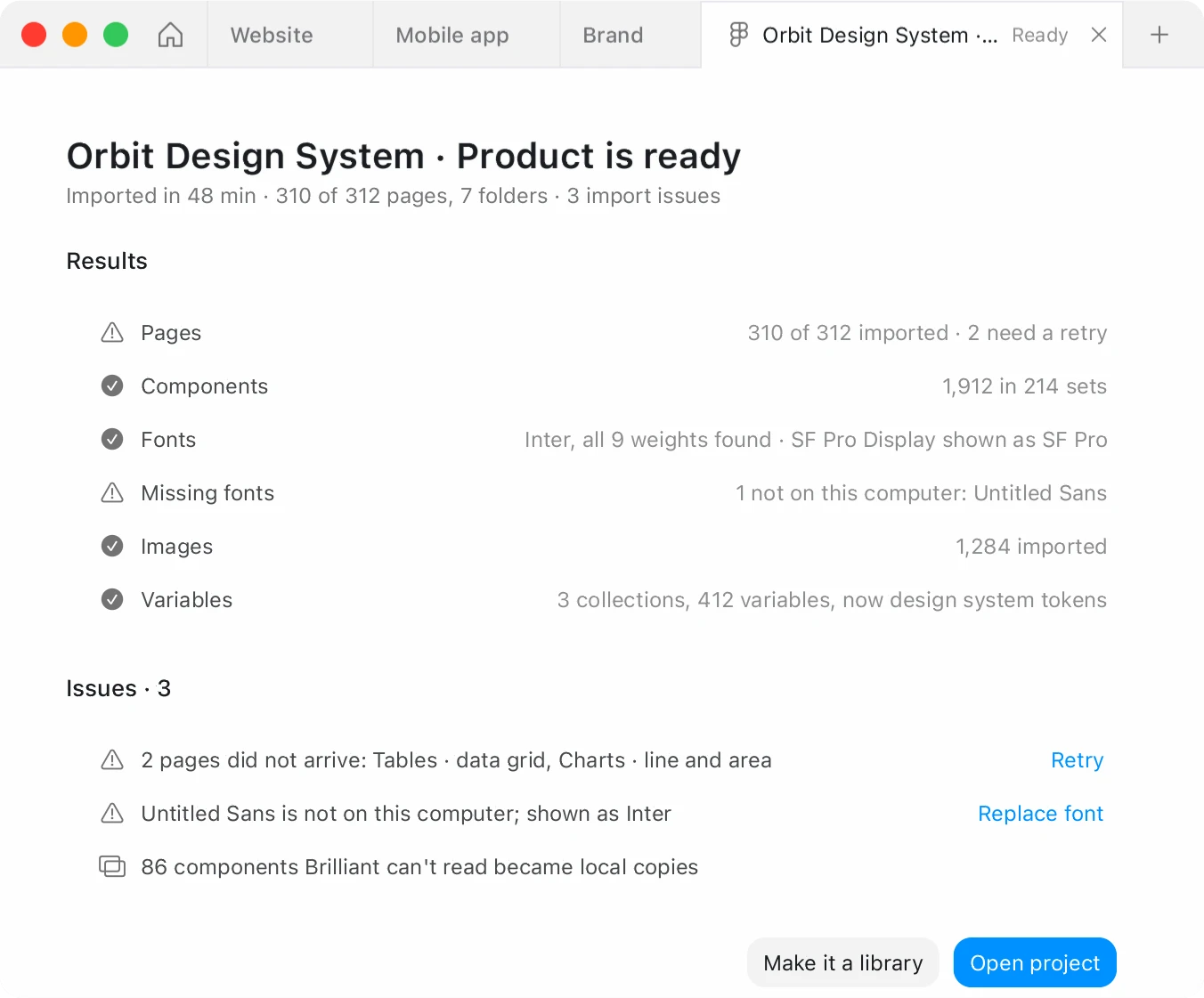
Nothing is created until you press Import. Keep the plugin open while it runs; you can keep working in Brilliant in the meantime.
Open the project
Each Figma page is now a canvas, and the Migration report lists what came across and anything that didn't. Figma variables are the project's design system, with layers still bound to them.
Connect your agent and ask for a change
Connect Claude Code with the line below, or check your tool in Settings, MCP connections on the desktop app. Then ask for an edit, and tell the agent to use the project's design system so new work binds to the imported tokens.
Terminal
claude mcp add --scope user brilliant -- npx -y @brilliant-hq/mcp
Common problems
| Problem | Fix |
|---|---|
| The plugin shows its own page list instead of these steps | The plugin is older than 1.7. Update it in Figma. |
| A page is too large to import in the browser | A page past about 25,000 nodes or 64 MB needs the desktop app. The browser names it and imports the rest. |
| Instances arrived as standalone elements | That happens when the master was not part of a selection. Import the whole file, or include the master in the selection. |
| Pasted images arrive as labeled placeholders | Images in a copy and paste need a Figma connection. Run Connect Figma from the palette, or use the plugin. |
Questions
What carries over from Figma?
Auto layout, frames and groups, vector paths and boolean operations, fills, strokes and gradients, shadows and blurs, text styling, components with their variants, and variables and styles as a design system.
What stays in Figma?
Prototype connections and transitions stay in Figma; the frames come across. Text property knobs stay in Figma too, and the import warnings name them. The plugin runs in the Figma design editor, not in FigJam, Figma Slides or Dev Mode.
Can the agent import a Figma link by itself?
Yes, with a Figma connection. An agent's link import brings resolved values only: no variables and no live library connections. Use the plugin to bring the design system.
Does importing the file again make a duplicate?
No. Import the file again and it updates the same project in place.
Does it cost anything?
The plugin is free, and your own agents over MCP get unlimited canvas work on every plan, Free included.