How to make a poster with an AI agent
How to make a poster from one prompt
Open the playground
Go to brilliant.design/playground. It opens the editor with the AI chat, and you can try it without an account.
Describe the poster and give its size
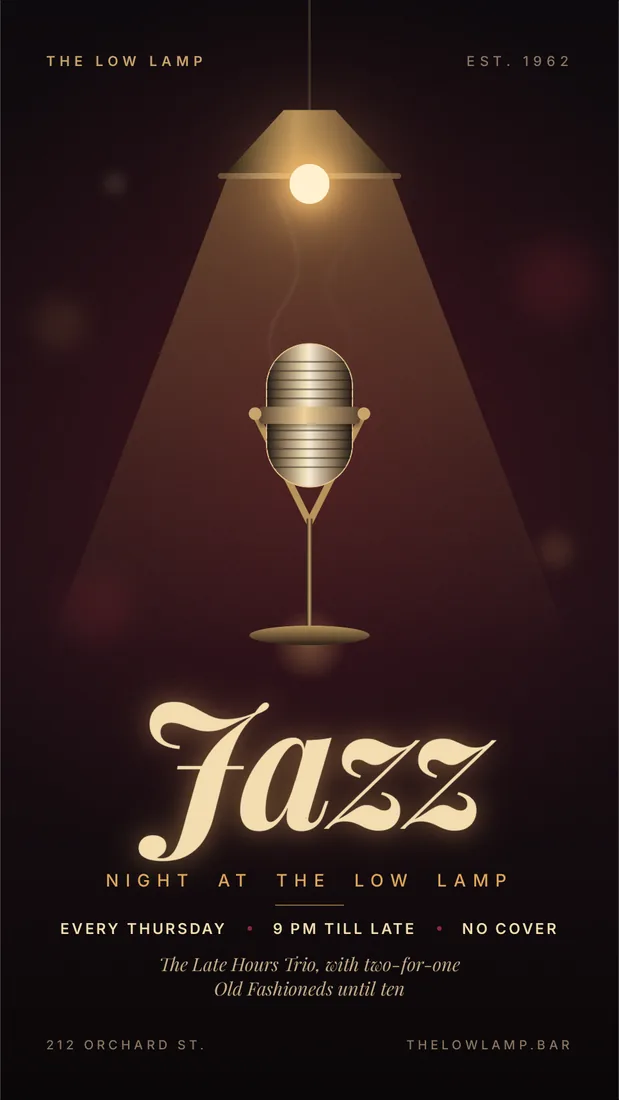
Say what the poster is for, the mood, and the format. This is the prompt behind the jazz poster above, word for word.
Prompt
Poster for a jazz night at a small neighborhood bar, moody and stylish. 9:16 story, 1080 x 1920. Draw every illustration with shapes and vectors on the canvas, no generated or stock images.Let the agent draw it
The agent builds the poster on the canvas while you watch. The chat lists what it looked at and what it changed, and each part shows up in the Layers panel.
Ask for changes, or make them yourself
Type a follow-up such as "make the headline larger", or select any layer and edit it by hand.
Export the poster
Press Cmd+E for a PNG. For print, choose PDF in the Export section of the right panel: it embeds the fonts.
Common problems
| Problem | Fix |
|---|---|
| The poster comes out at the wrong size | Put the format and the pixel size in the prompt, for example 9:16 story, 1080 x 1920. |
| A glow or shadow looks soft in the PDF | In a PDF, an element with an effect is rasterized whole. Export a PNG at 2x or higher from the Export section instead. |
| You want drawn artwork, not generated pictures | Say so in the prompt: draw every illustration with shapes and vectors on the canvas, no generated or stock images. |
Questions
Do I need an account?
No. The playground lets you try the editor and its AI chat without an account. Sign in to keep your work.
Can I edit the poster after the agent makes it?
Yes. The poster is made of layers on a canvas: shapes, vectors and text you can select and change by hand or with another prompt.
Which formats can I export?
PNG, JPEG and WebP images, SVG and PDF vectors, and HTML or React code. PNG and WebP keep transparency.
Can I use my own agent instead of the built-in chat?
Yes. Claude Code, Cursor and other MCP clients connect to Brilliant and design on the same canvas.
Can I start from a photo?
Yes. Remove the background at brilliant.design/remove-background, press Edit on the canvas, and ask the AI chat for a backdrop, a shadow or a headline.